 RC
RC
How to download tvOS 18.6 beta
Download tvOS 18.6 beta profile to receive new updates on your Apple TV.
You can always switch between Developer Beta or Public Beta if you change your mind. Learn about the differences between these two versions.
It's easier if you install the file from your Apple TV instead. To do that, follow the instructions below:
Open Settings app
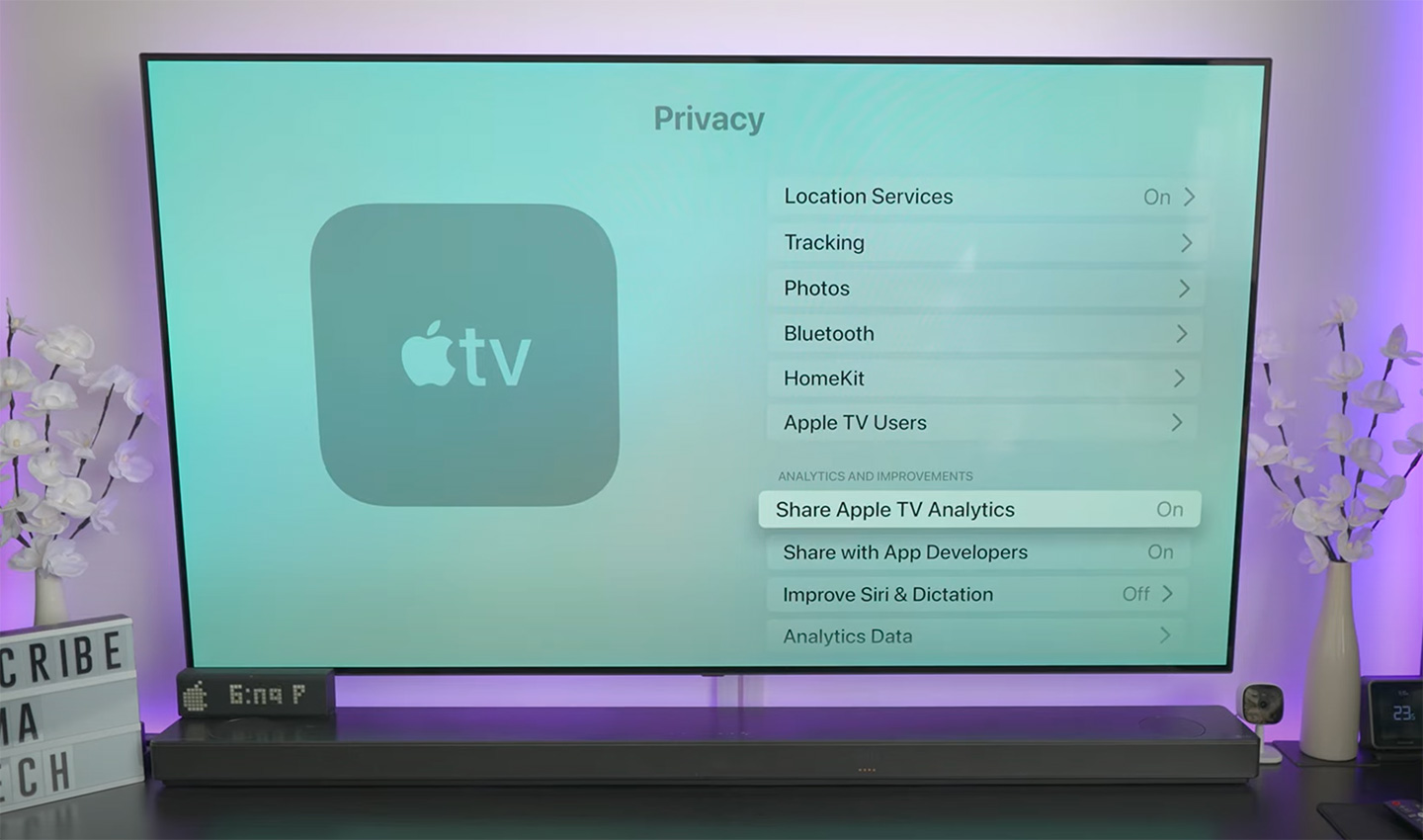
Open the Settings app and move to General → Privacy → Send Apple TV Analytics.
Do some trick
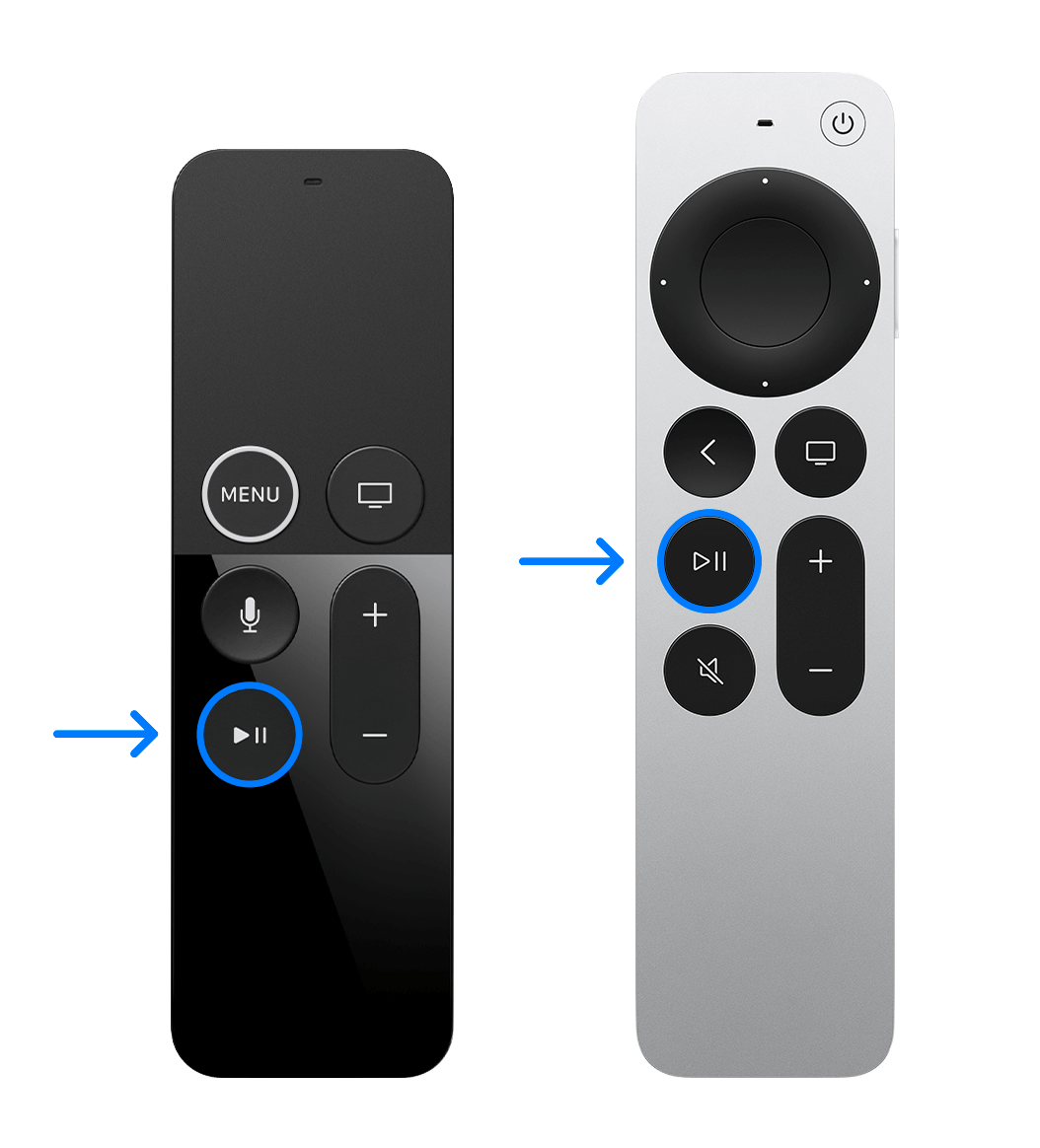
When you have Share Apple TV Analytics selected, don’t click on it. Instead, press the Play/Pause button on the remote and it will open the Add Profile menu, press Play/Pause button again on this option.
Install profile
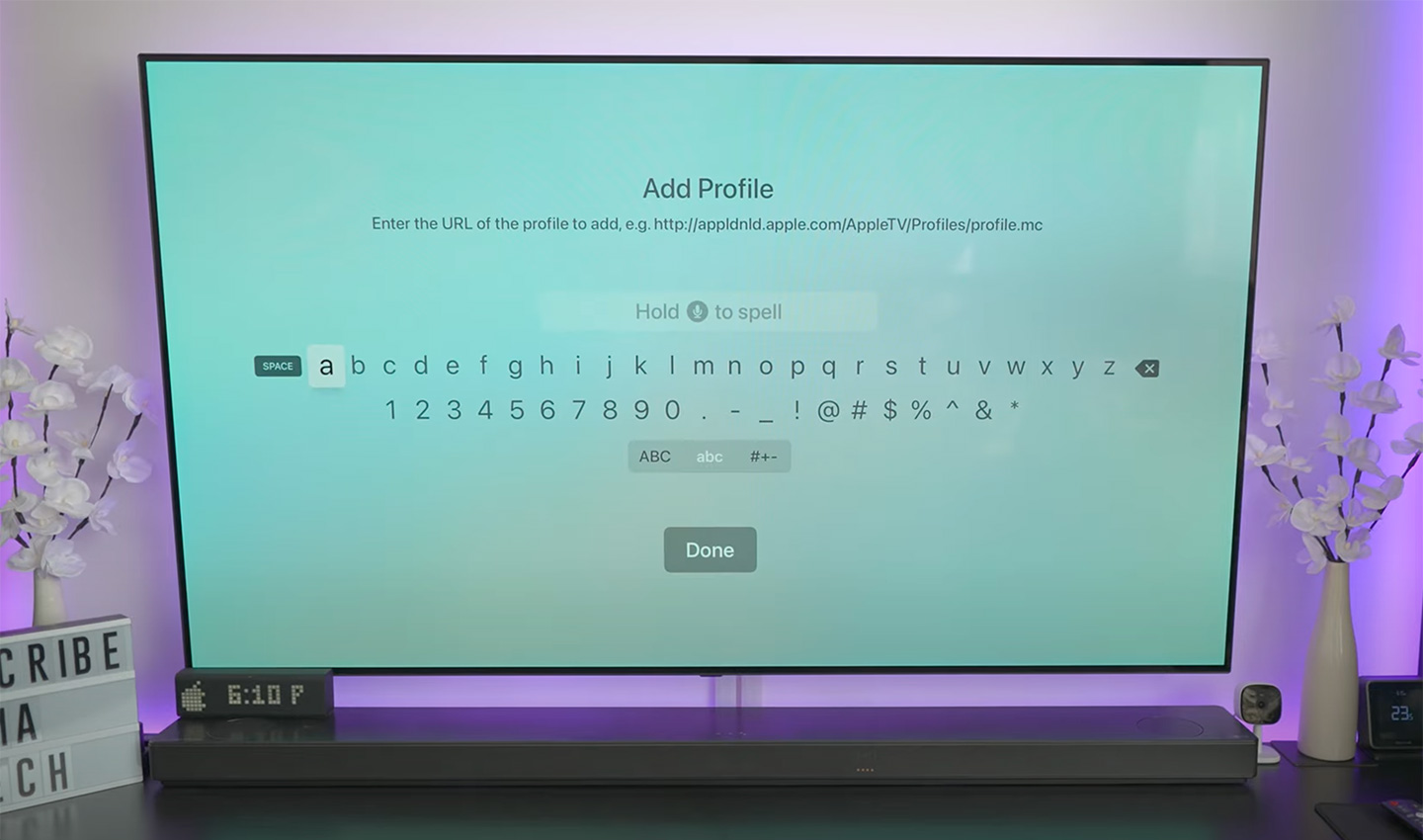
In the text field that pops up, type https://bit.ly/tvos_18_new (This is a shortened link to the beta profile file, so you don't have to type a long link. And remember to type each character, don't paste it from your iPhone, that makes it not work), then click Done and select Install.
When you are prompted to reboot do so.
Turn off Get Beta Updates
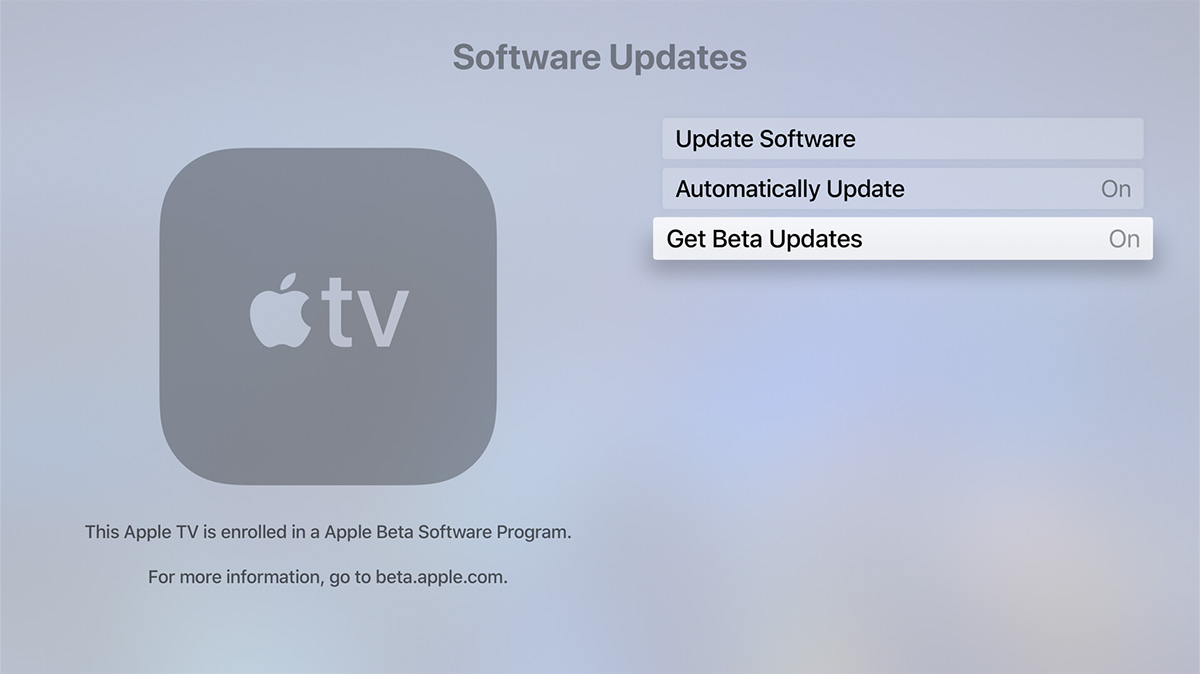
Make sure Settings → System → Software Updates → Get Beta Updates set to OFF.
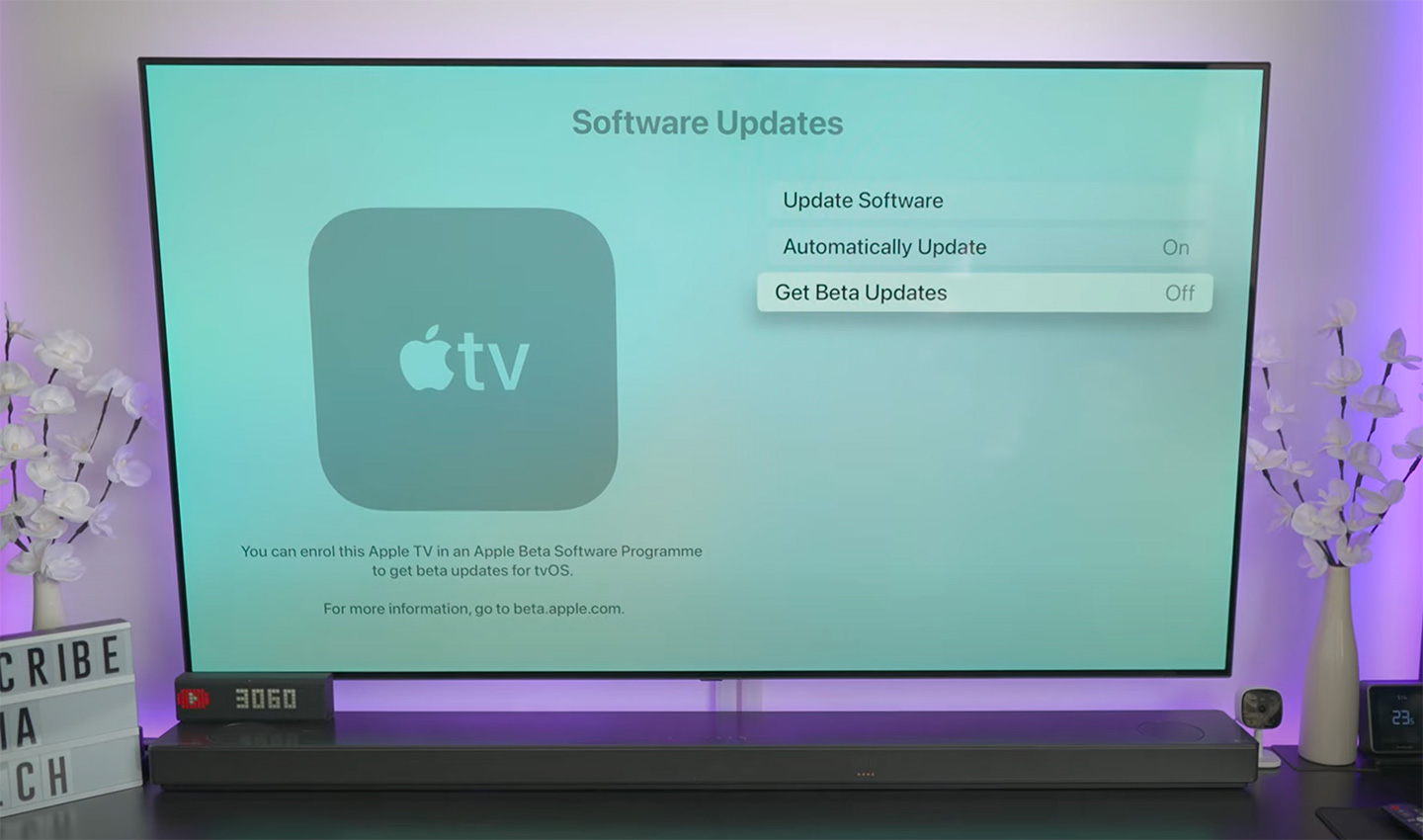
Update your Apple TV
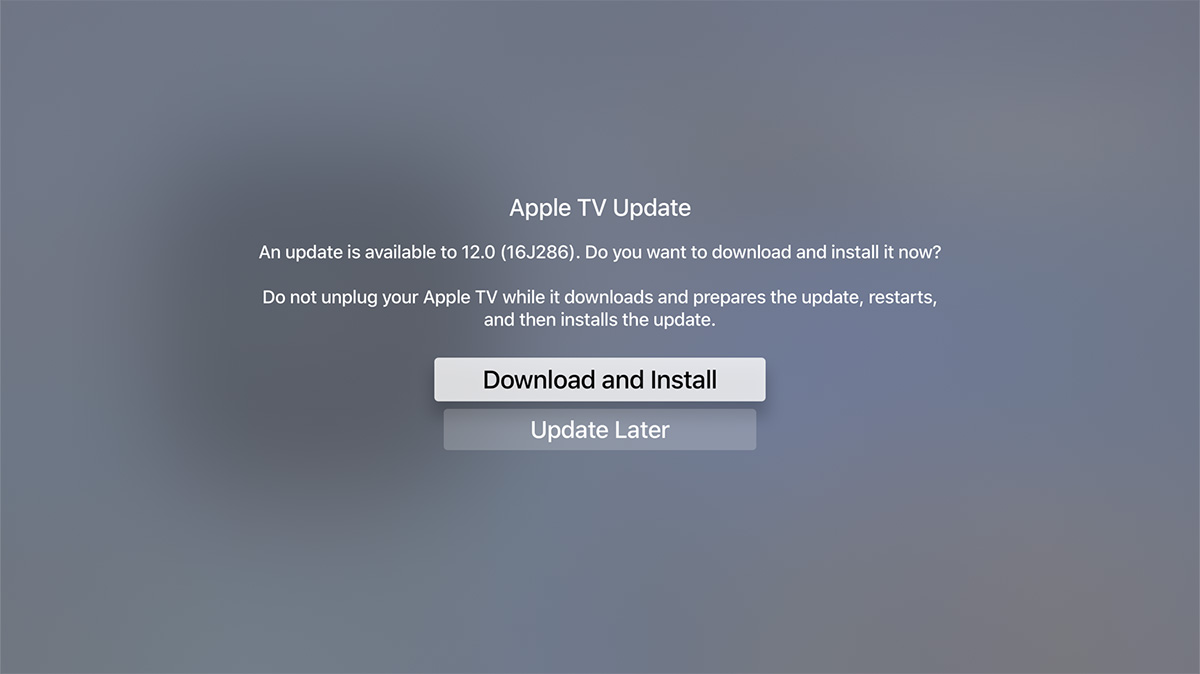
Once this is done, you can update 18.6 beta in Settings → System → Software Updates.
Provide Feedback
tvOS 18.6 beta with the Feedback Assistant app running on iOS or iPadOS devices enrolled in the developer (or public) beta. When you come across an issue on Apple TV that needs addressing, send your feedback to Apple with Feedback Assistant.
The images in this tutorial are taken from a YouTube video, if you have screenshots from Apple TV, please send it to me, I would appreciate it.
Latest update: June 3, 2026