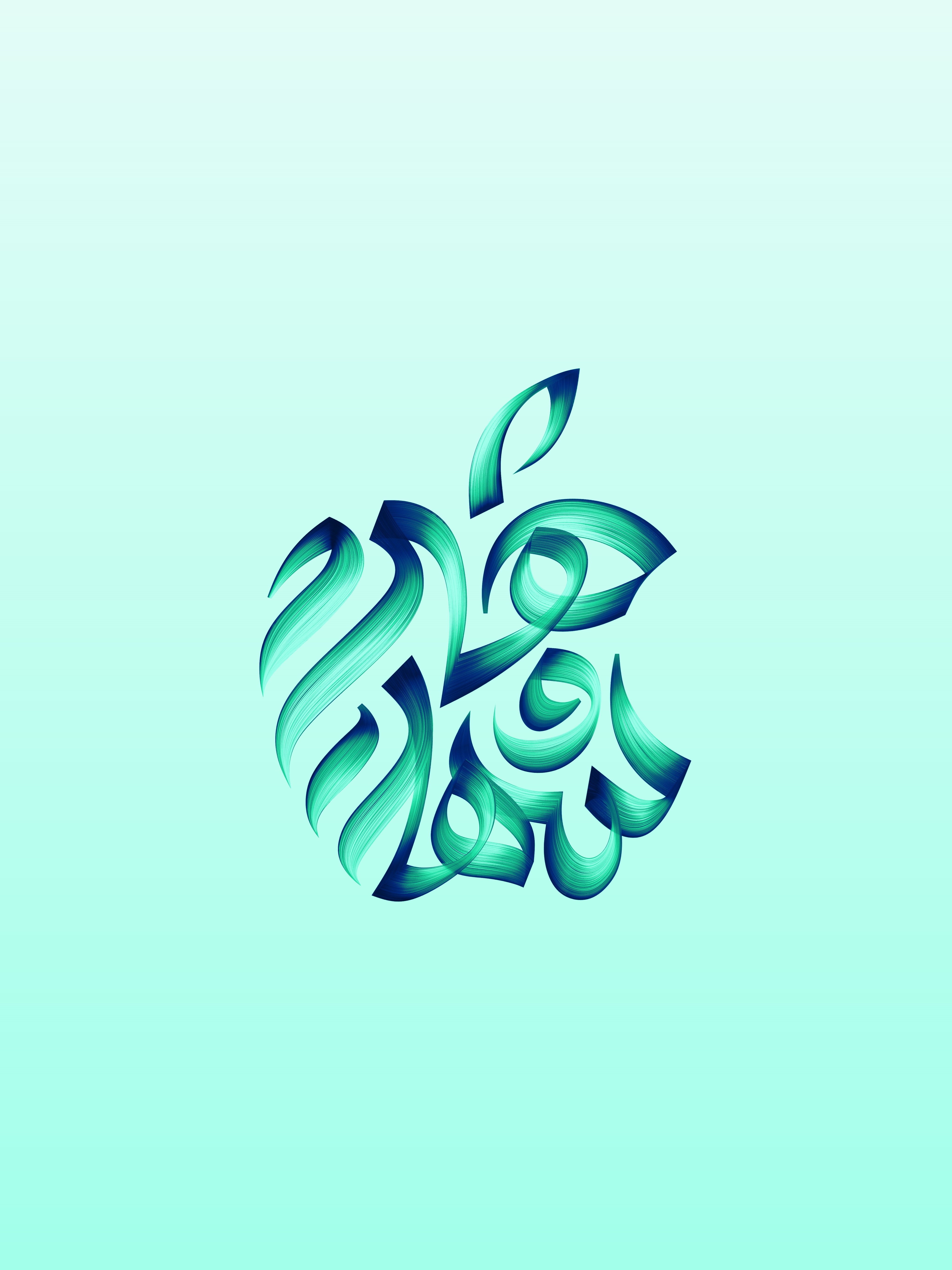
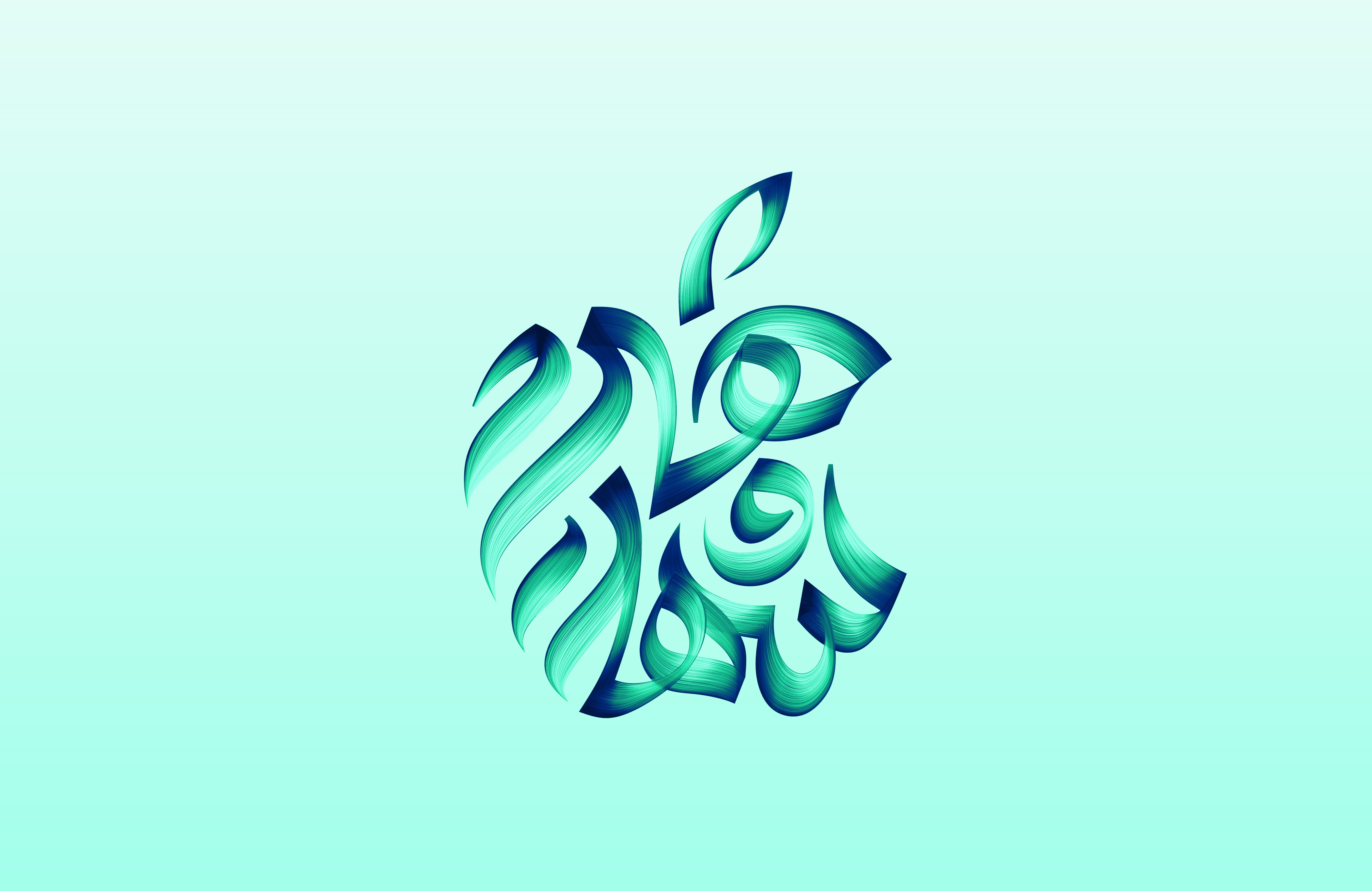
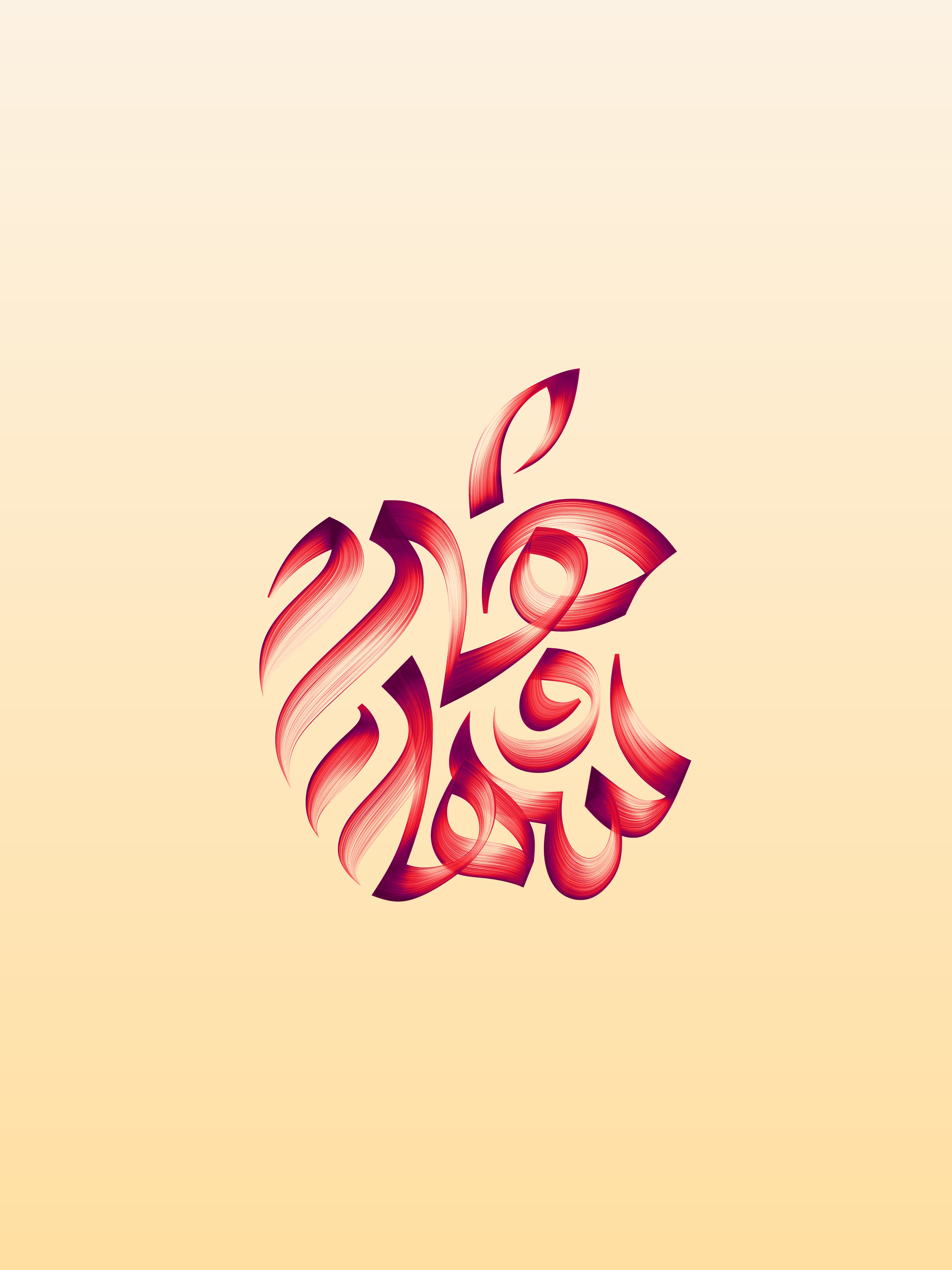
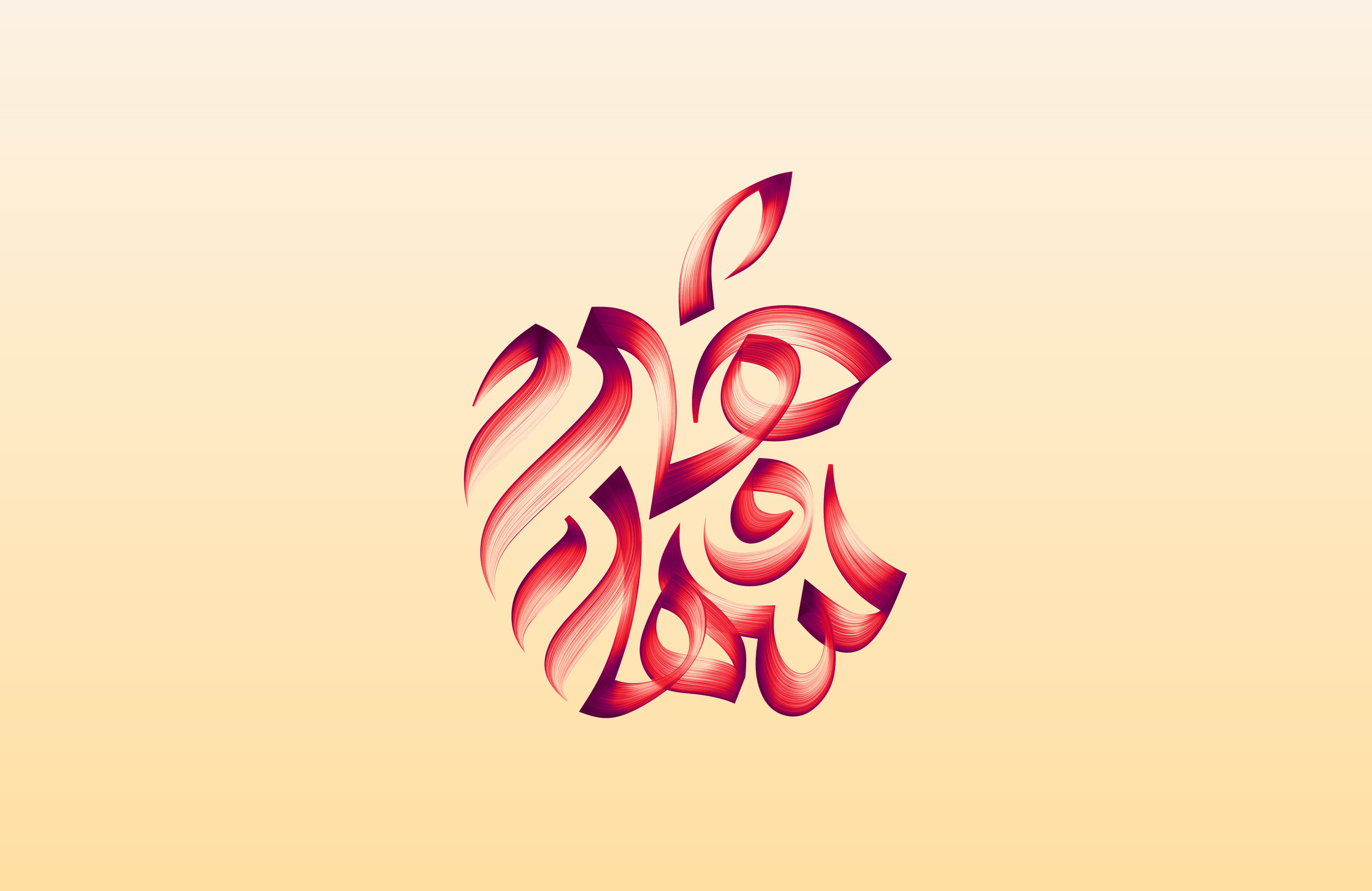
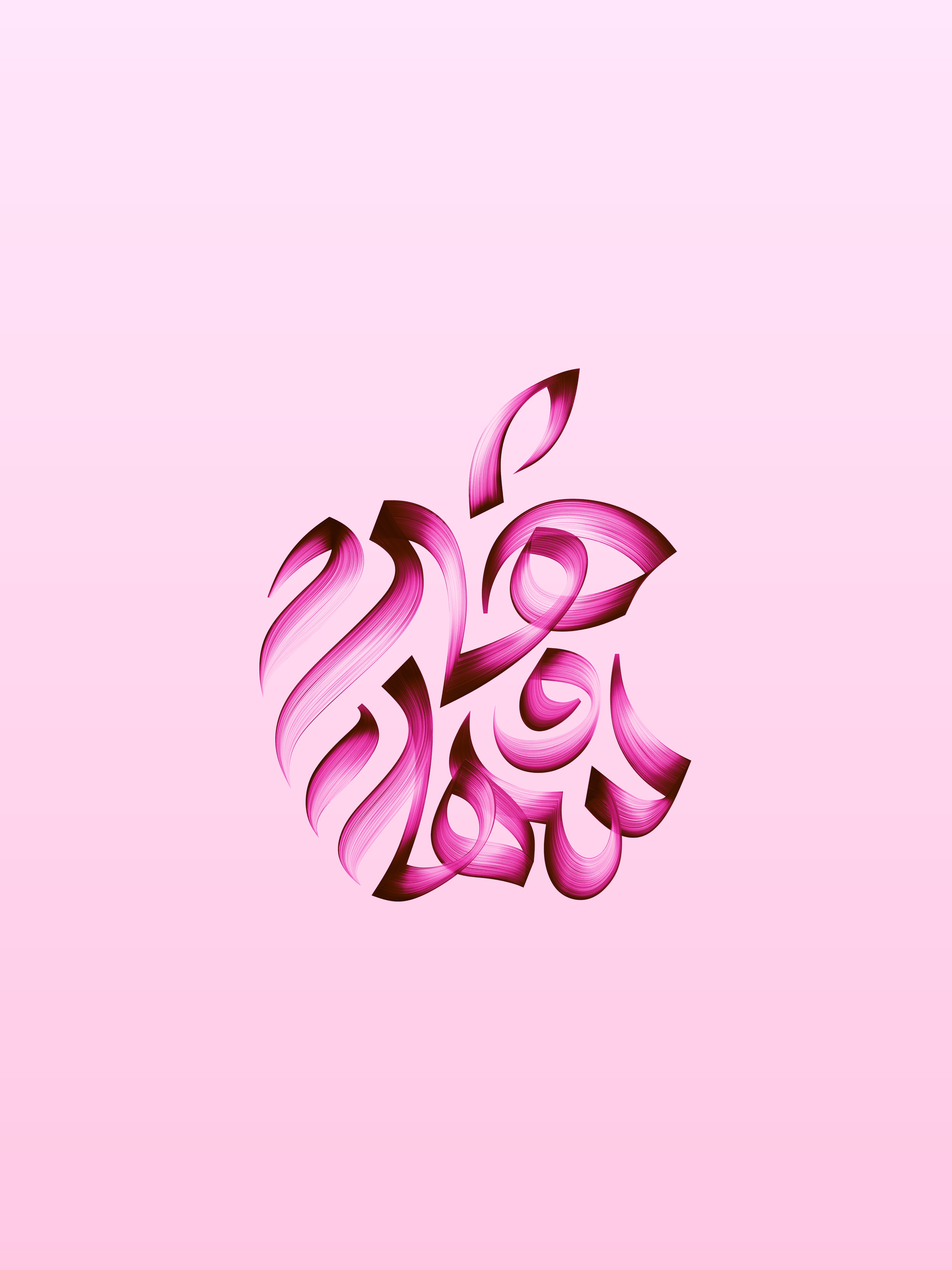
Apple Store Online in Saudi Arabia Wallpapers
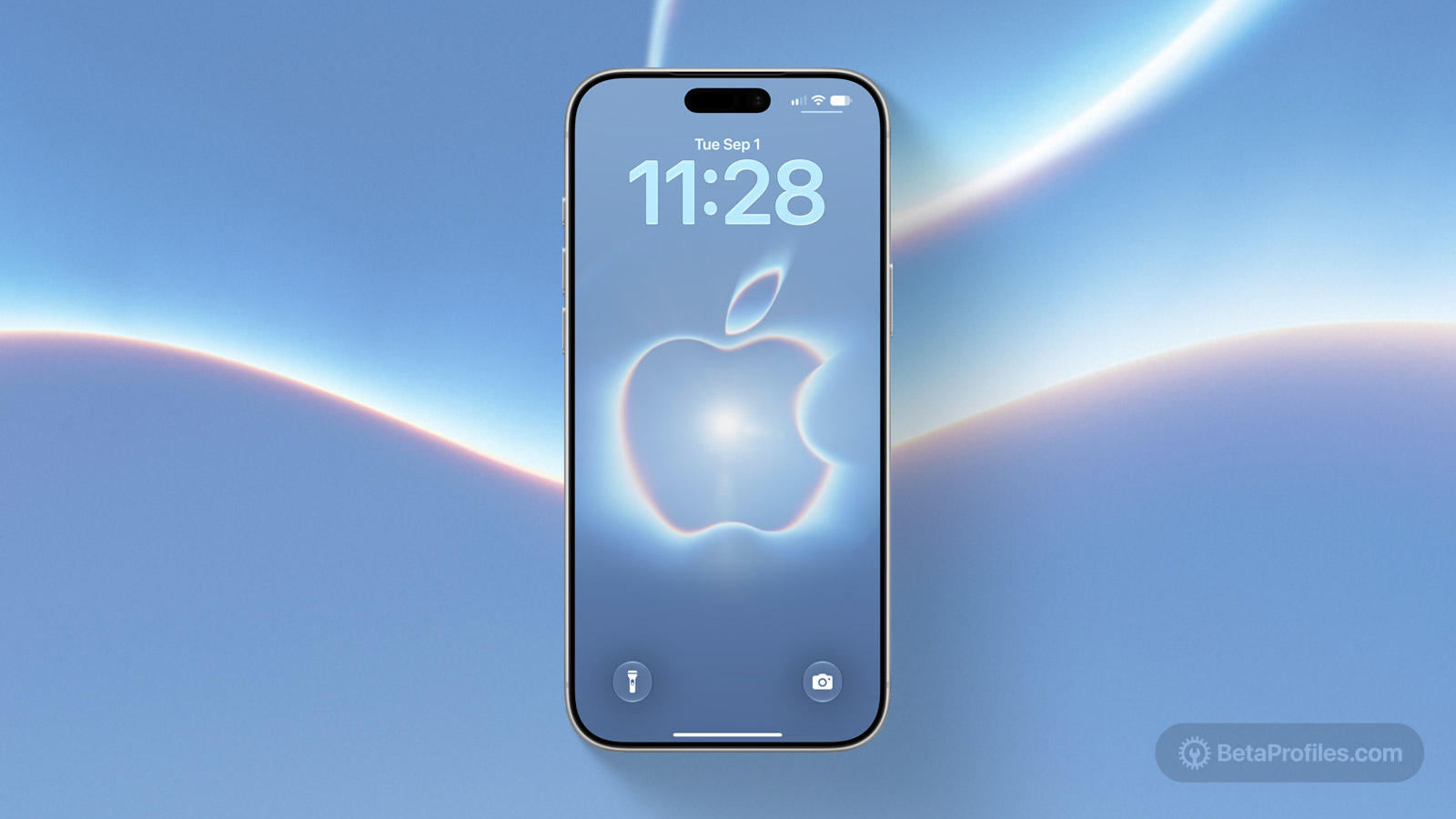
Apple has launched the Apple Store Online in the Kingdom of Saudi Arabia, marking the company’s entry into retail in the country.

Available for
iPhone
iPad
Mac
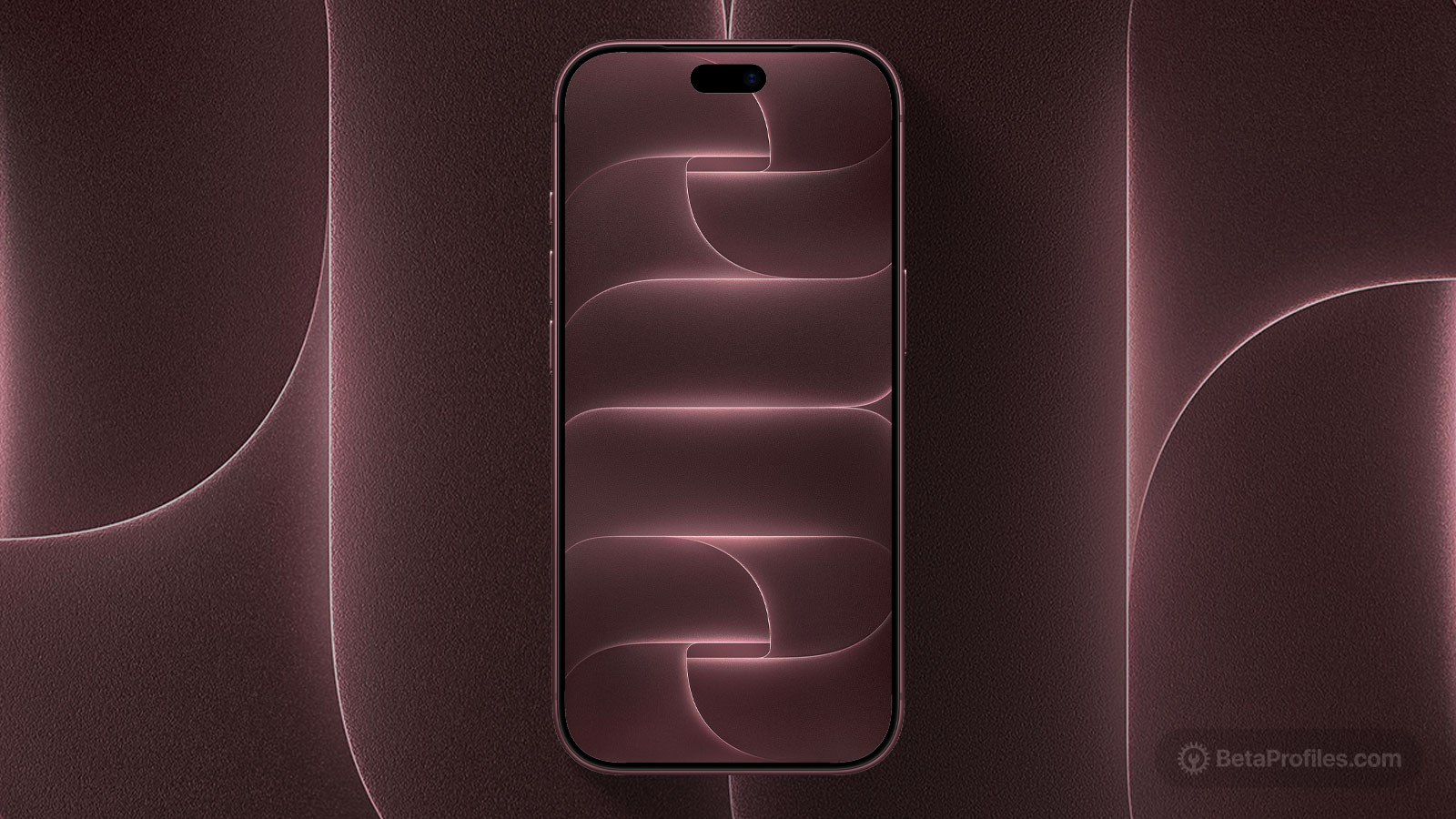
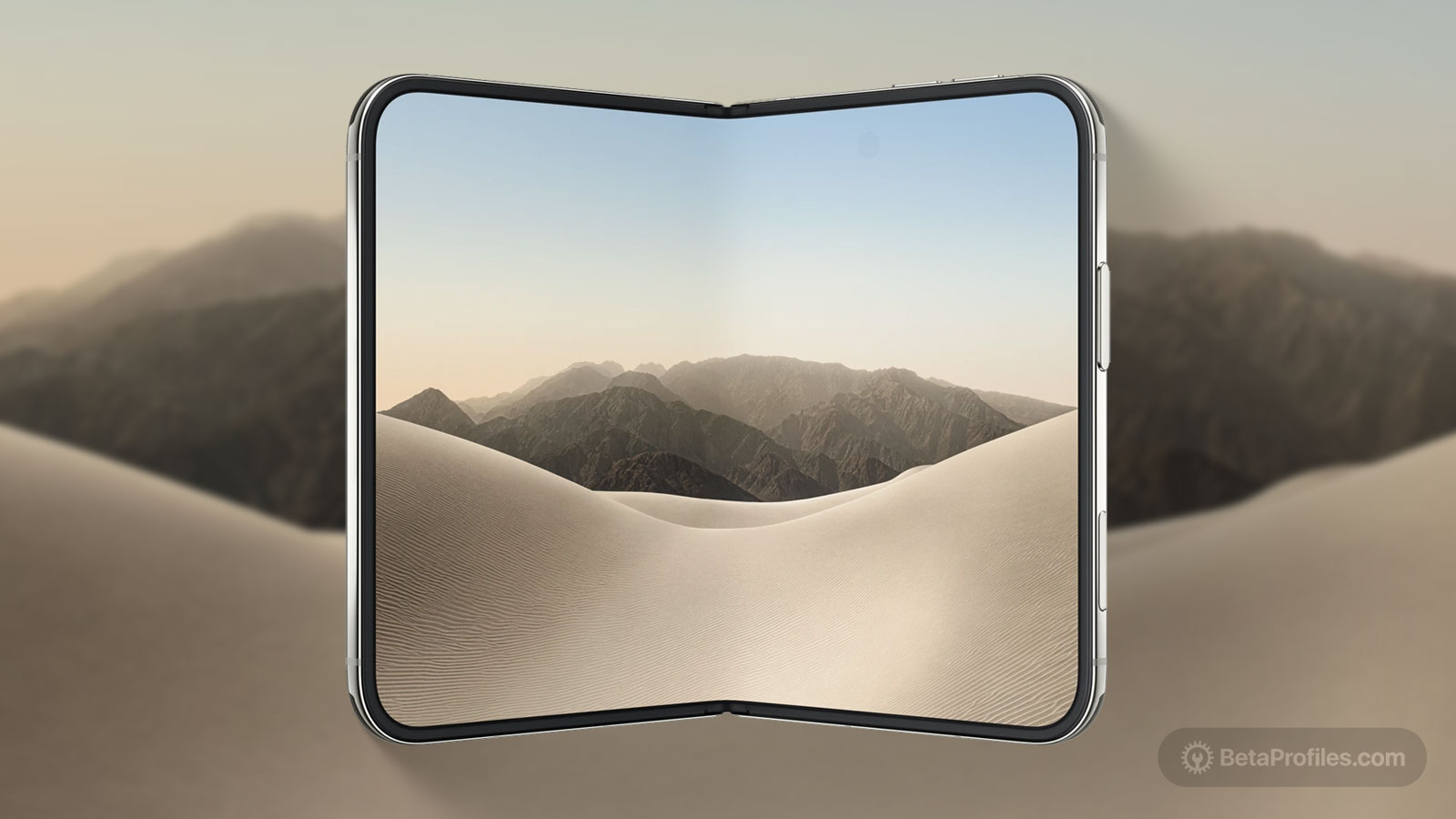
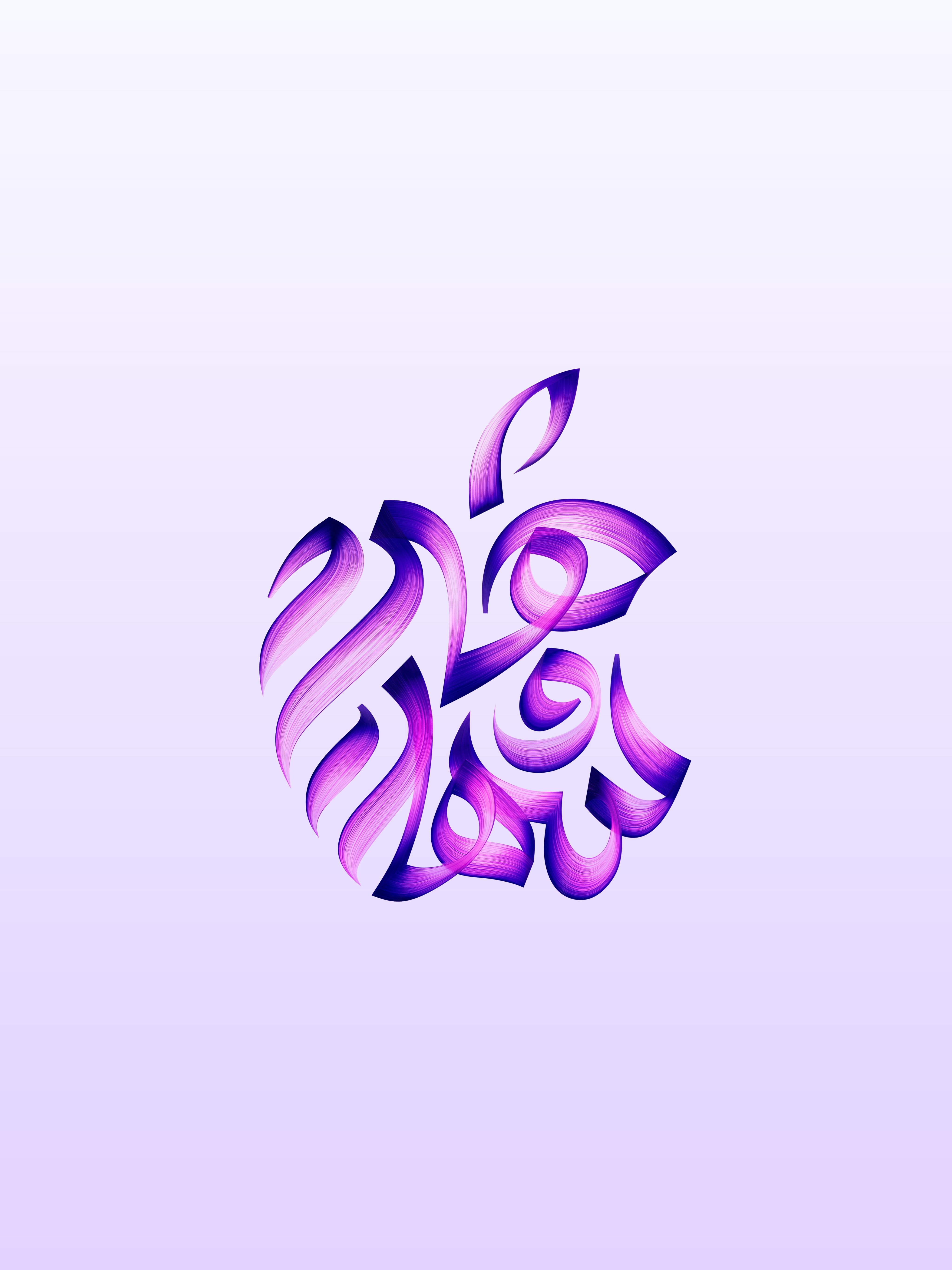
To celebrate the official debut, Apple introduced a set of brand-new wallpapers. These allow users to mix and match background and Apple logo colors in different combinations.
Last updated:
Download
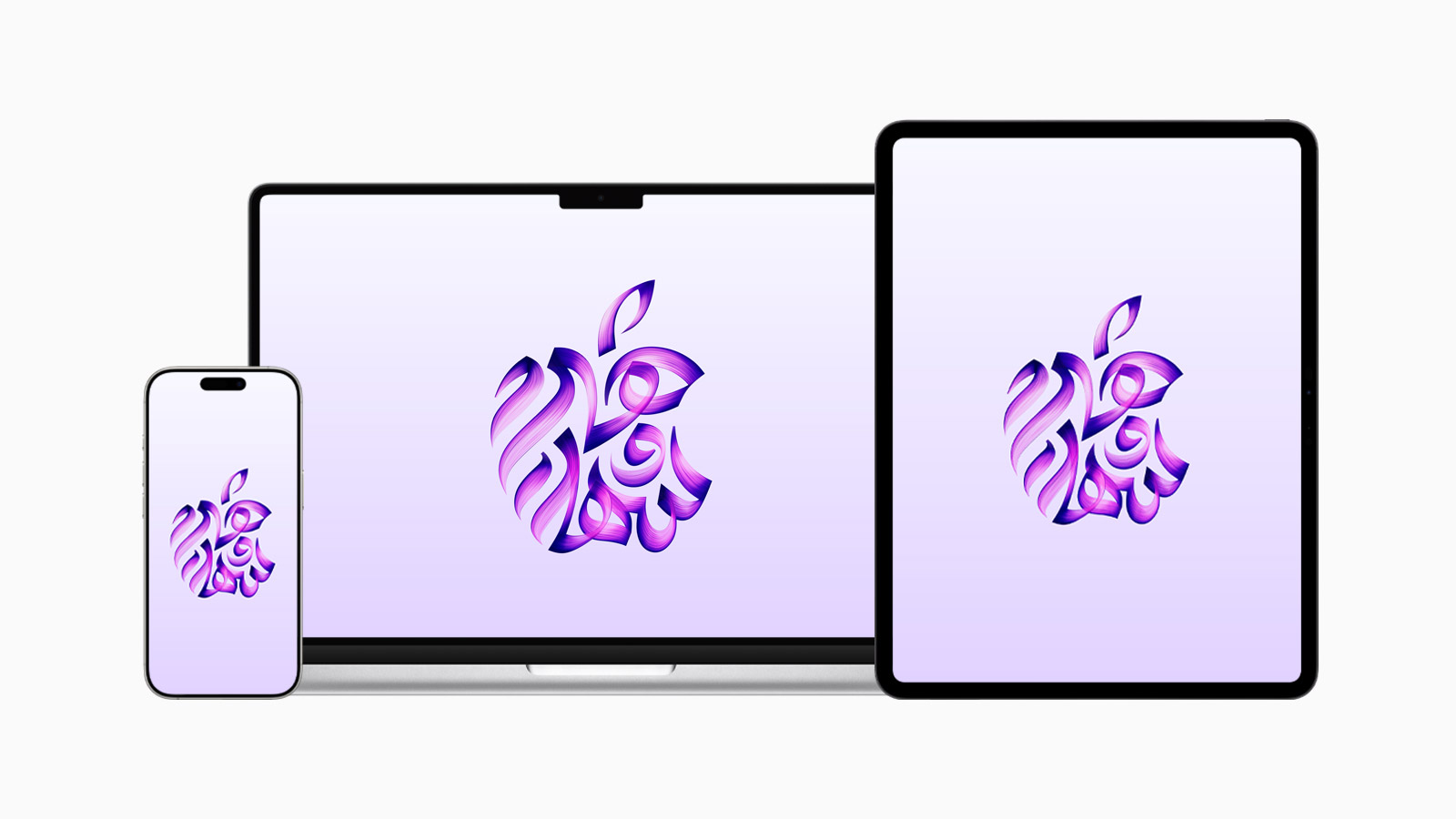
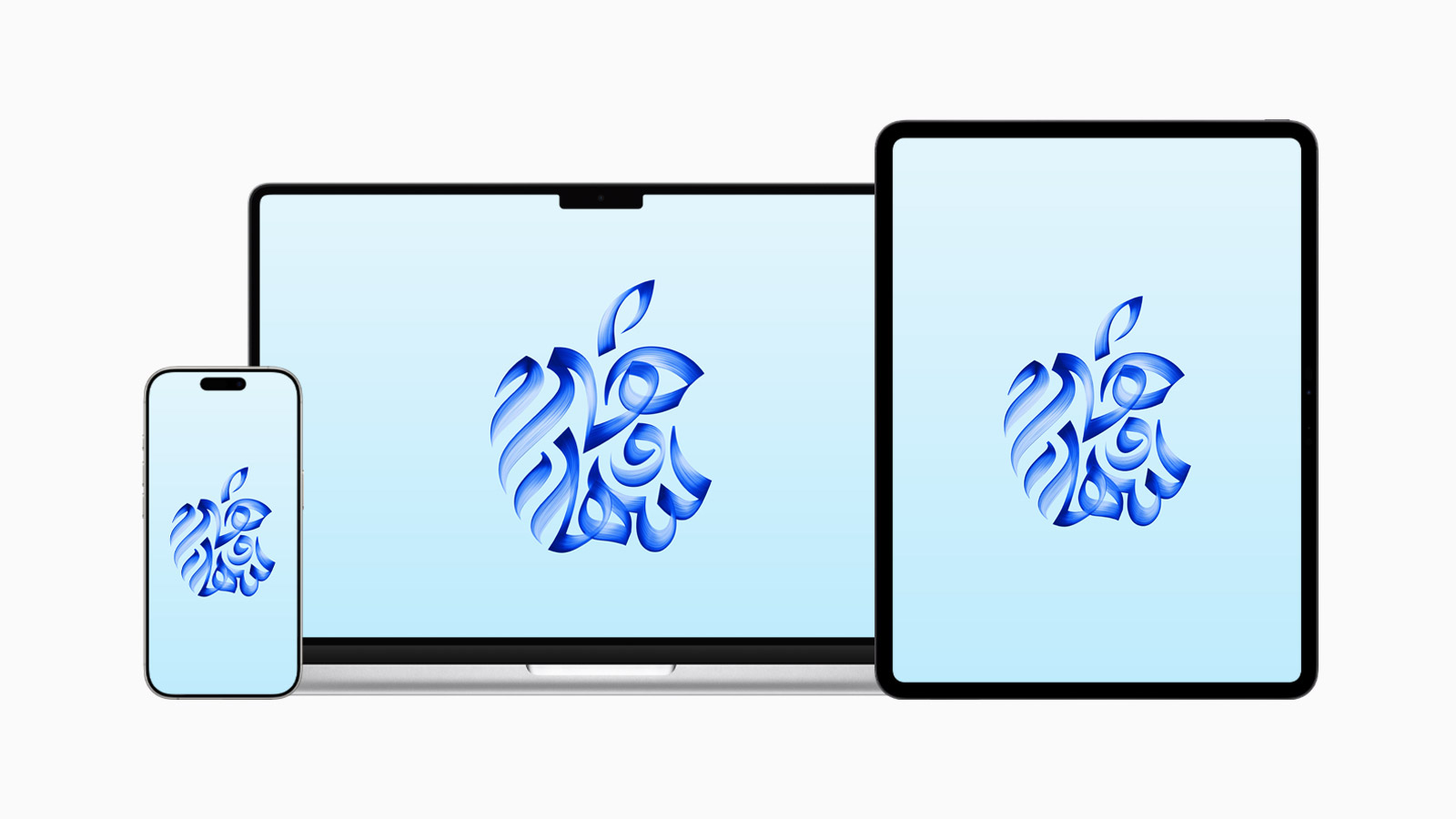
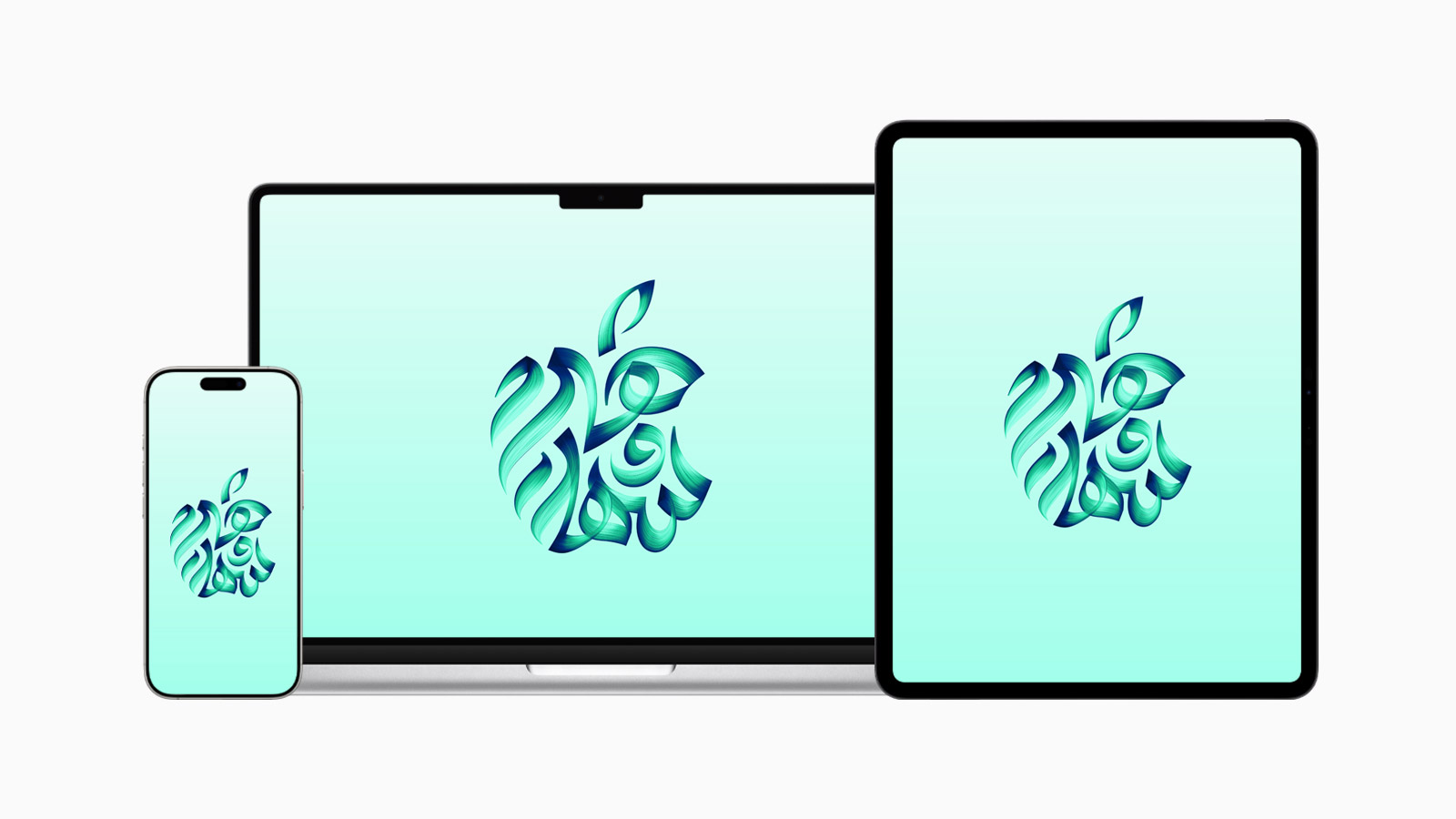
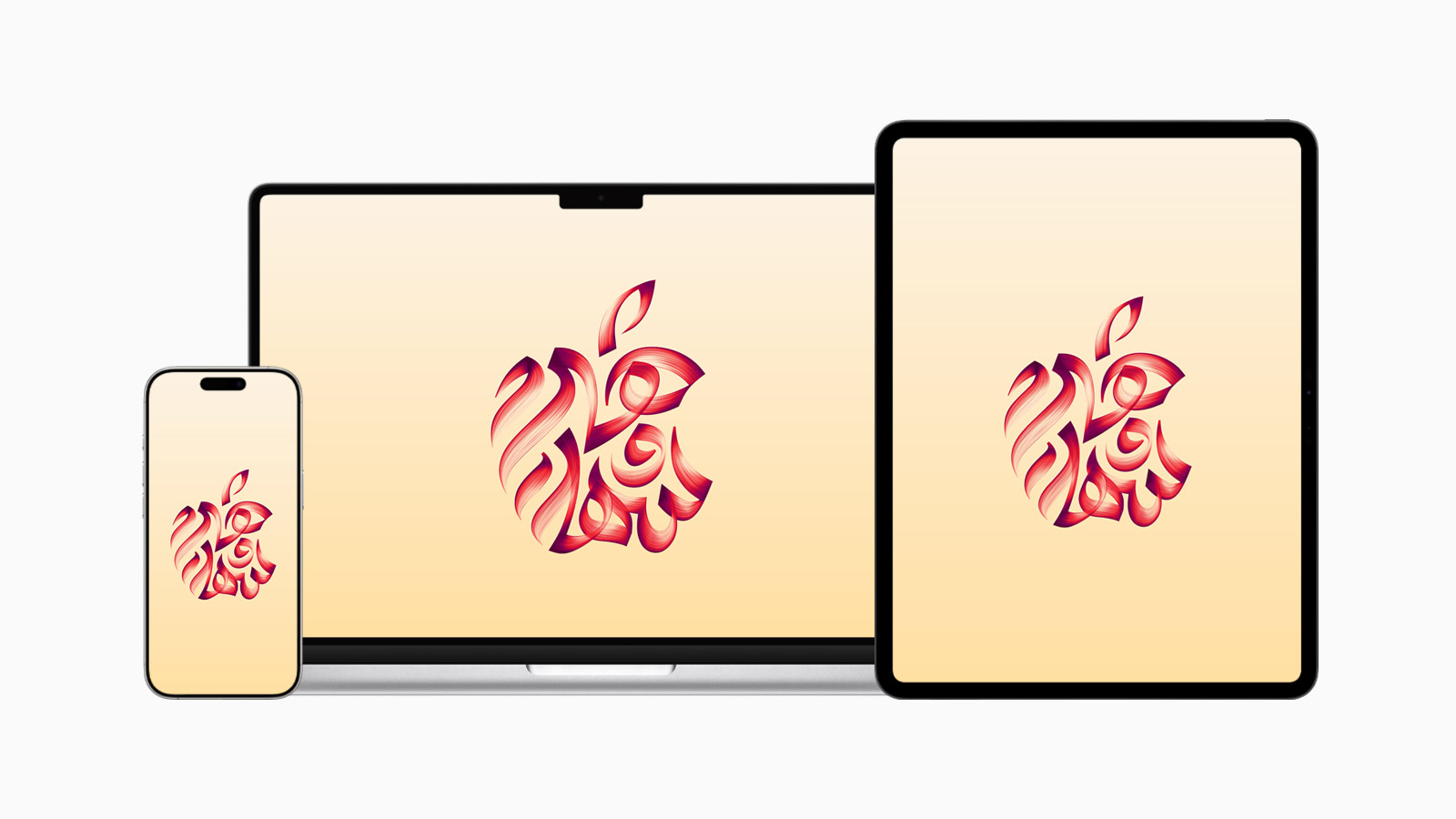
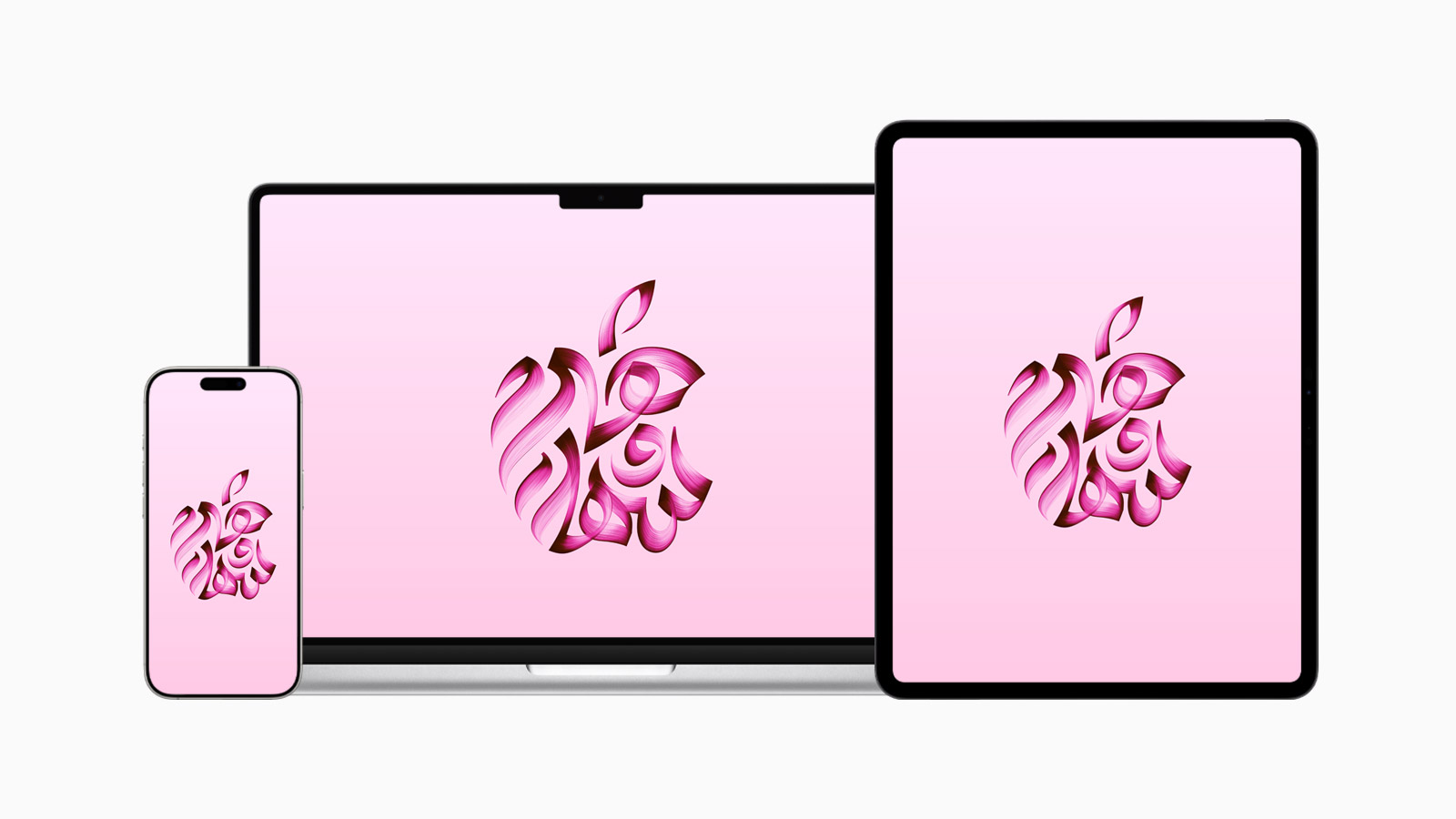
How to set wallpaper
Set your iPhone wallpaper
- In the Photos app, tap the image you downloaded.
- Tap Share button.
- Scroll down and tap Use as Wallpaper.
- Adjust the wallpaper to your liking, then tap Add.
- Tap Set as Wallpaper Pair to apply it to both your Home Screen and Lock Screen. Tap Customize Home Screen if you want to create a separate Home Screen wallpaper that you can edit.
Set your iPad wallpaper
- In the Photos app, tap the image you downloaded.
- Tap Share button.
- Tap Use as Wallpaper.
- Adjust the wallpaper to your liking, then tap Add.
- Tap Set as Wallpaper Pair to apply it to both your Home Screen and Lock Screen. Tap Customize Home Screen if you want to create a separate Home Screen wallpaper that you can edit.
Set your Mac wallpaper
- In Finder, open the folder where you saved the image.
- Right-click, or hold Control and click the image you want to set as your wallpaper.
- Click Set Desktop Picture. If you don’t see this option, move your cursor to Services > Set Desktop Picture.