Once you are running the developer (or public) beta software, you can use the Feedback Assistant app to provide feedback directly to Apple.
Launch Feedback Assistant
After installing the iOS beta, Feedback Assistant can be launched from the second page of your Home screen. Tap to launch it.
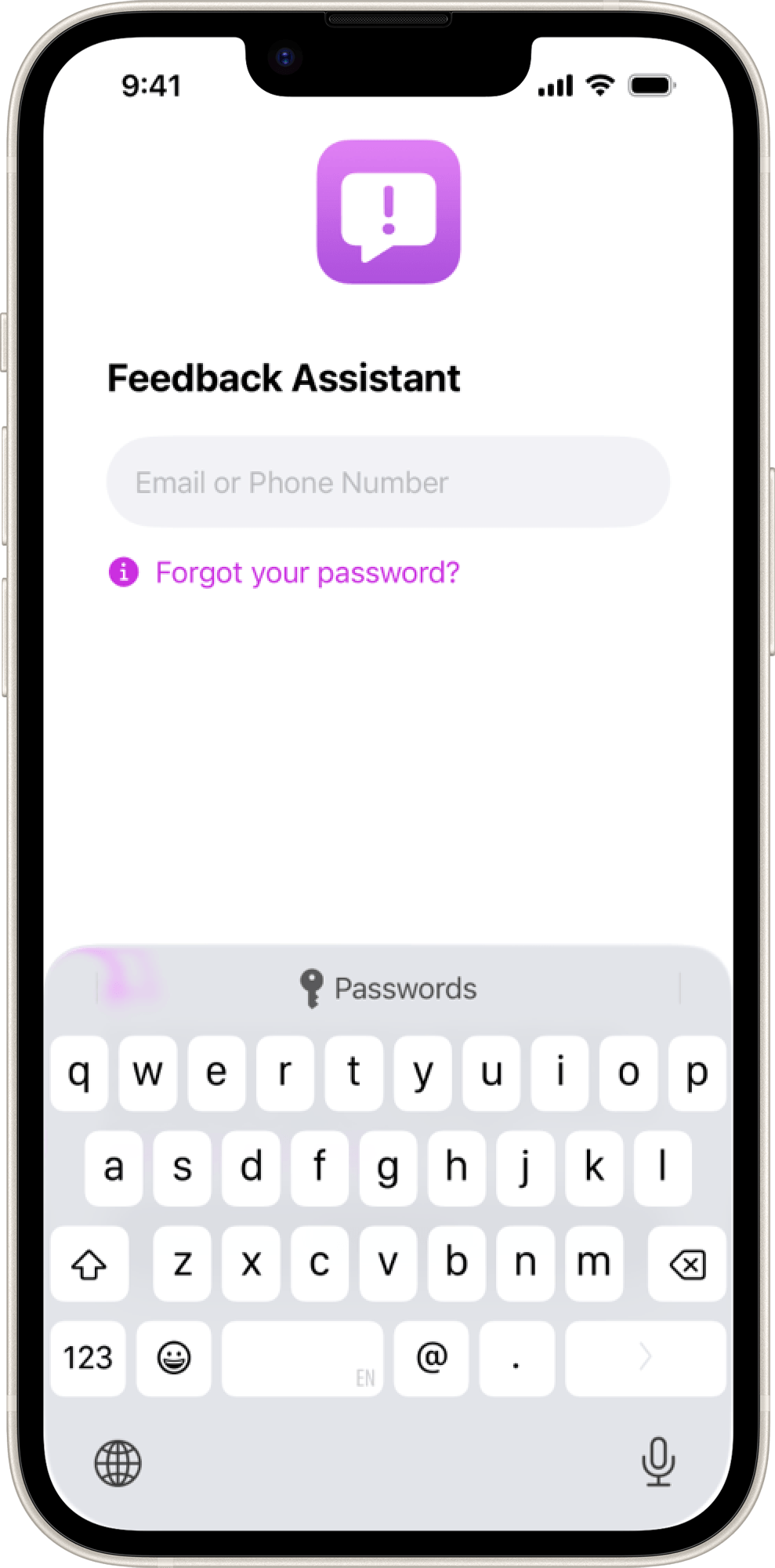
Sign in with your Apple Account
Sign in with the same Apple Account that you used to register for the Apple Beta Software Program.
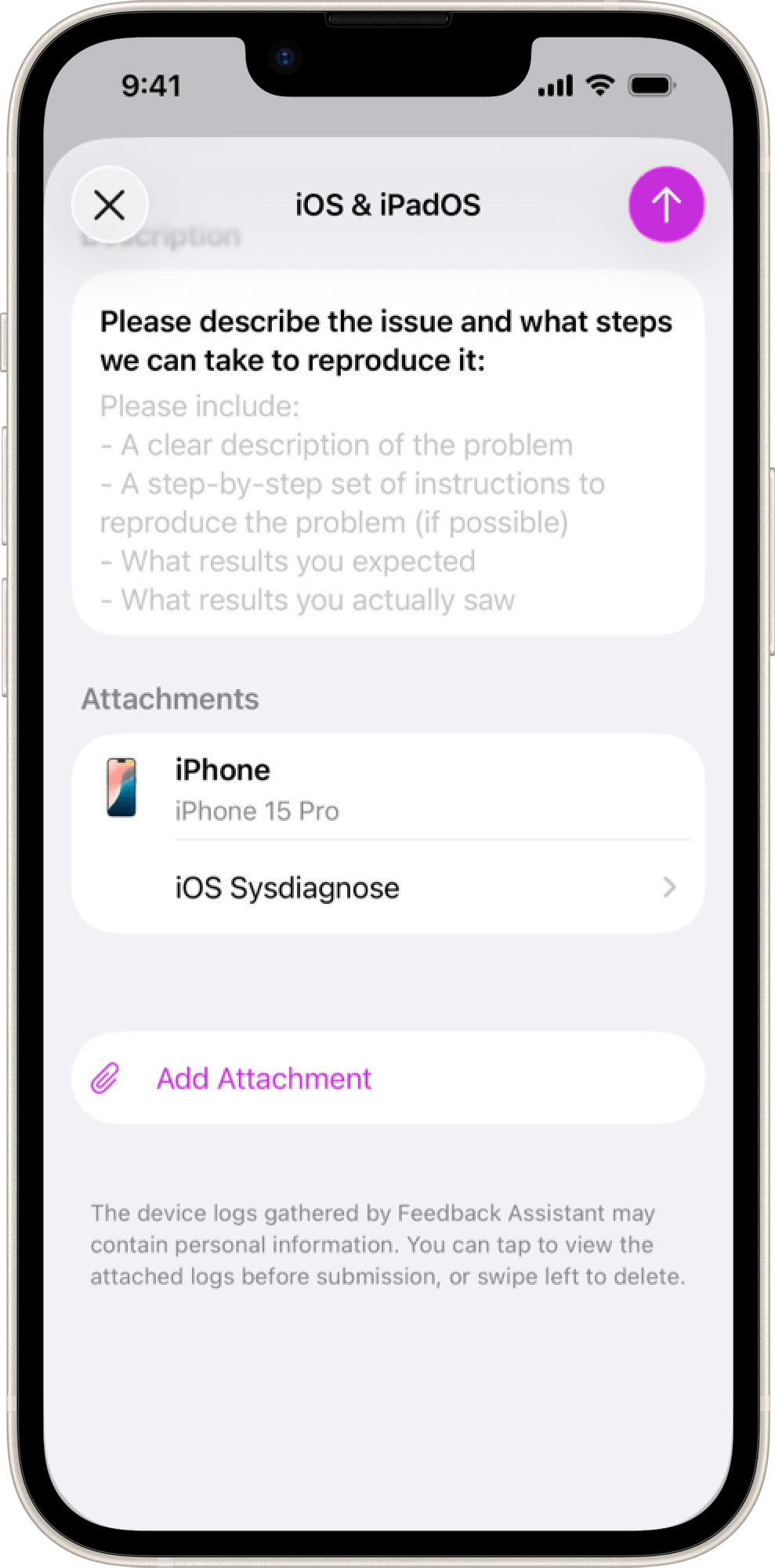
Capture diagnostic files
Diagnostic files help Apple investigate the issues you report. When you launch the Feedback Assistant app, diagnostic files are captured automatically and appear as attachments in your feedback report.
You can also capture diagnostic files right after the issue occurred by pressing “Shift + Control + Command + Period”. Your screen will flash and a notification will appear once the diagnostic files have been created.
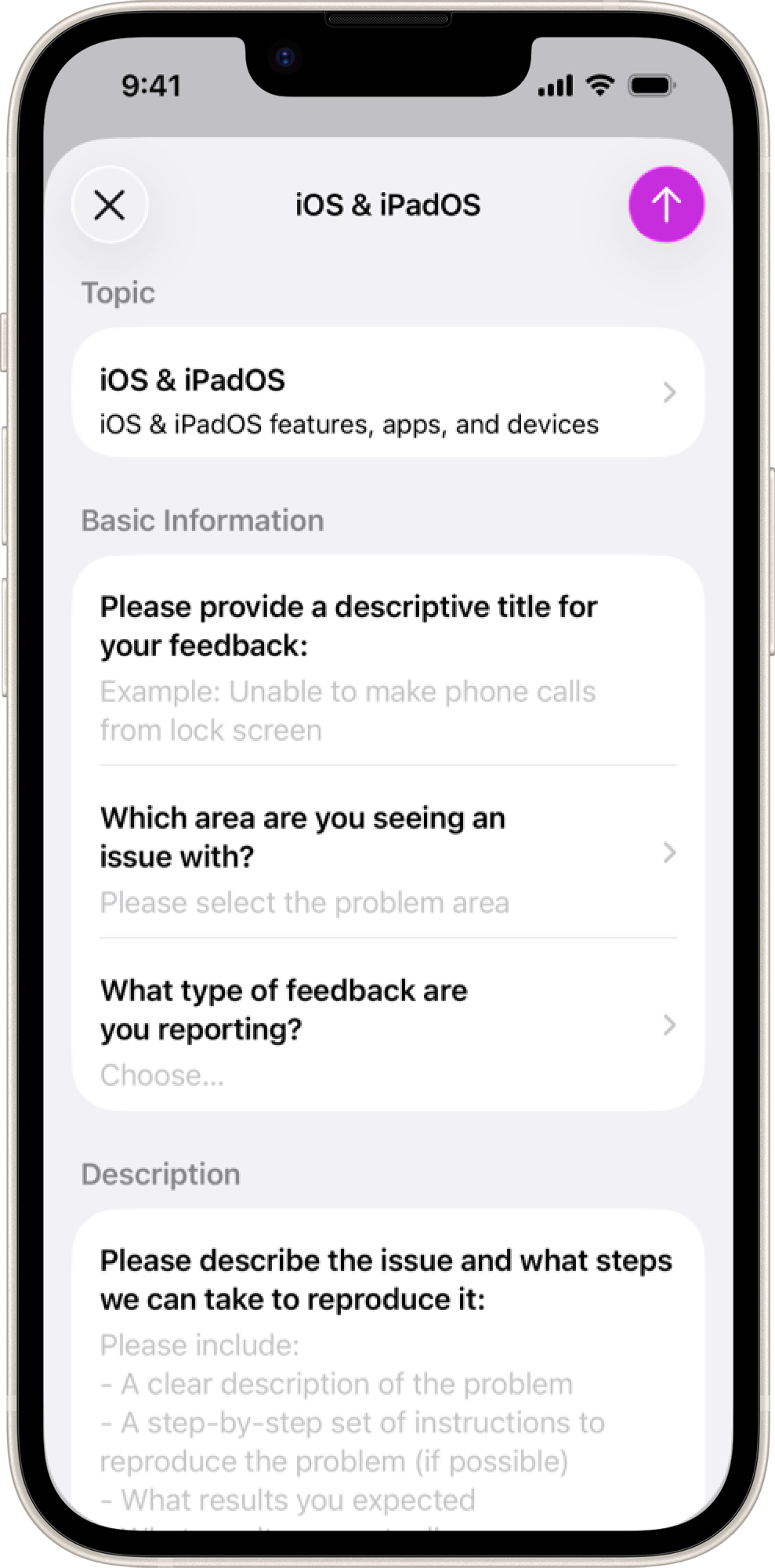
Send Apple your feedback
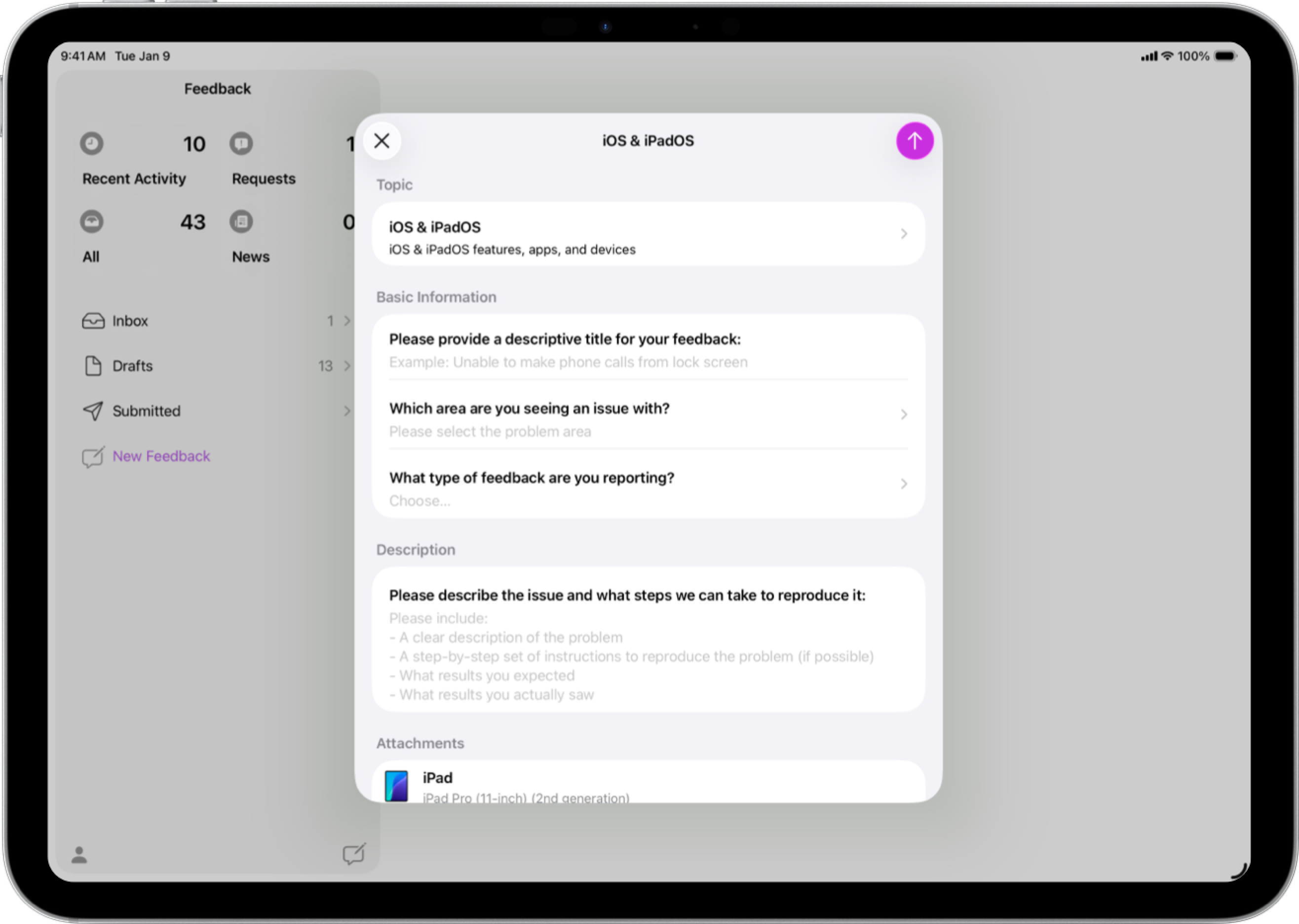
Feedback Assistant guides you through the process for reporting issues. Fill out the form, review your answers and diagnostic files, and submit your feedback to Apple.
After installing the iPadOS beta, Feedback Assistant can be launched from the second page of your Home screen. Tap to launch it.
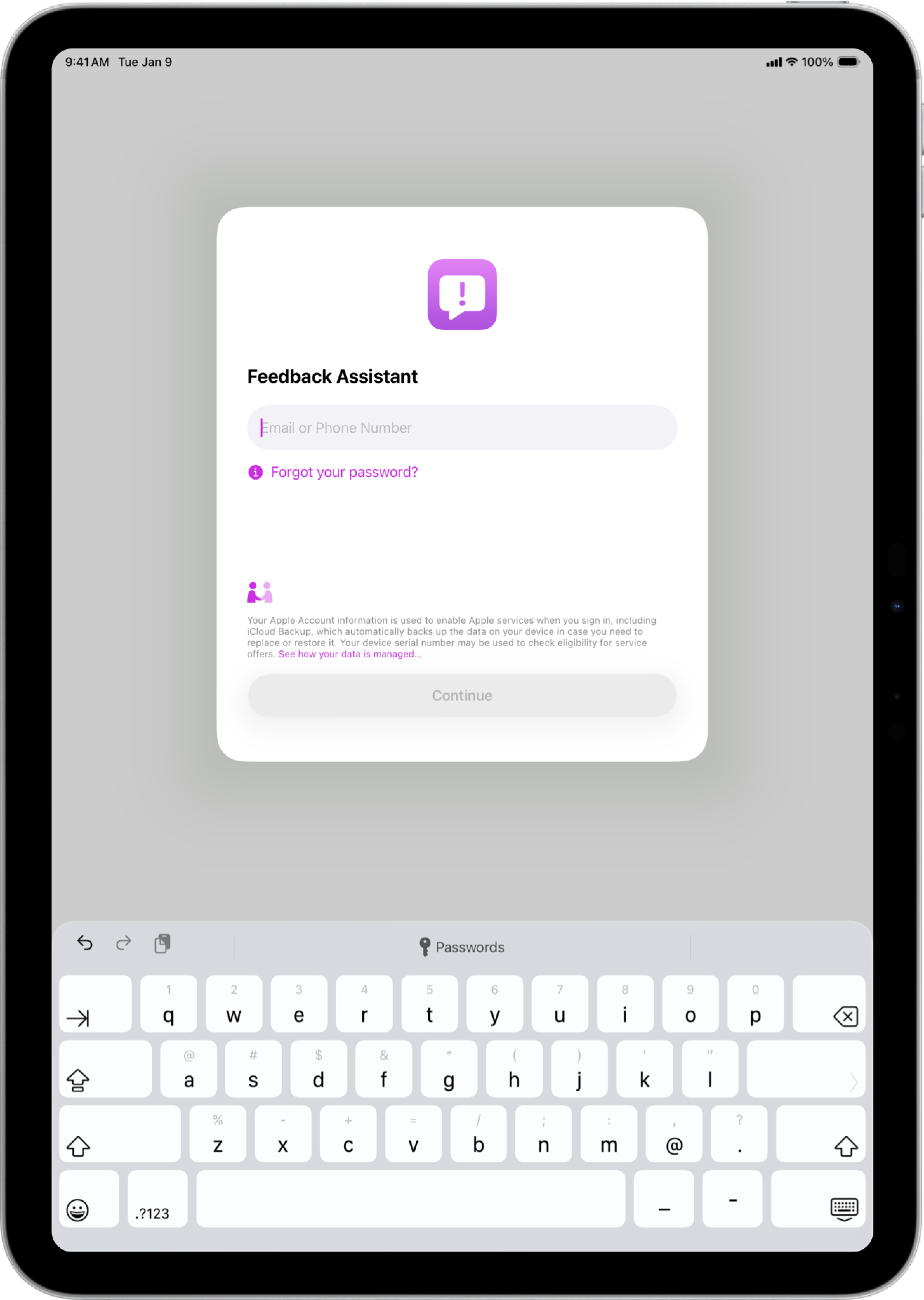
Sign in with your Apple Account
Sign in with the same Apple Account that you used to register for the Apple Beta Software Program.
Capture diagnostic files
Diagnostic files help Apple investigate the issues you report. When you launch the Feedback Assistant app, diagnostic files are captured automatically and appear as attachments in your feedback report.
You can also capture diagnostic files right after the issue occurred by pressing “Volume Up + Volume Down + Side Button” for 1 to 1.5 seconds. A notification will appear once the diagnostic files have been created.
Send Apple your feedback
Feedback Assistant guides you through the process for reporting issues. Fill out the form, review your answers and diagnostic files, and submit your feedback to Apple.
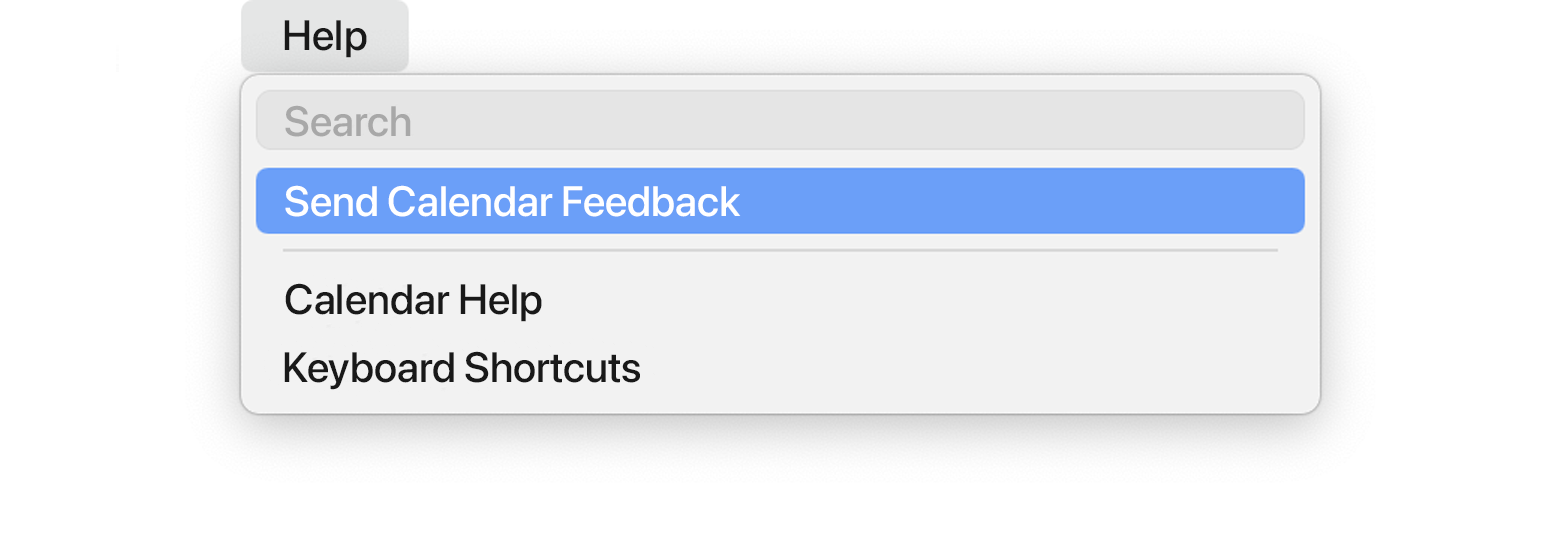
After installing the macOS beta, Feedback Assistant can be launched from your Dock or by selecting “Send Feedback” from your Help menu.
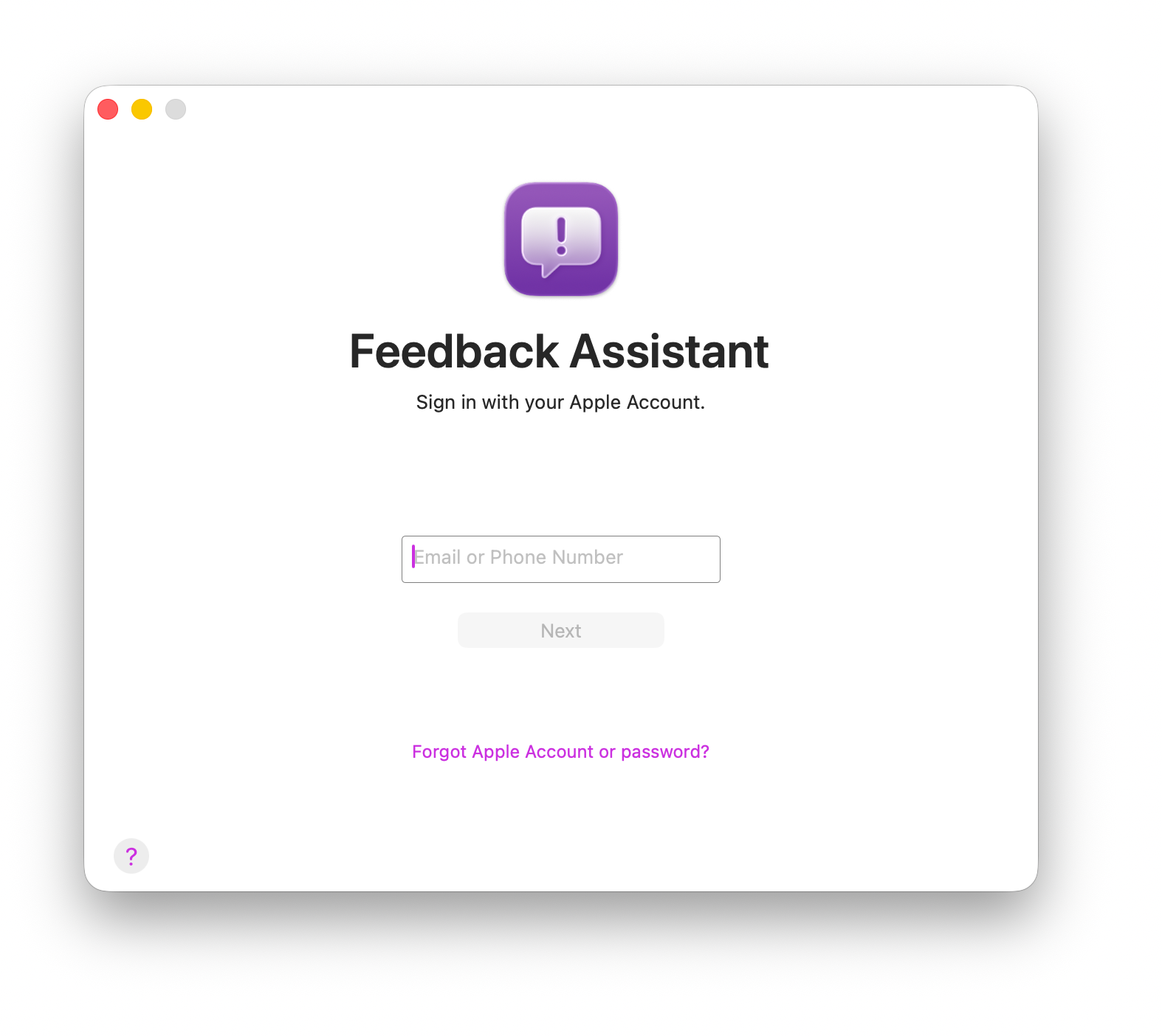
Sign in with your Apple Account
Sign in with the same Apple Account that you used to register for the Apple Beta Software Program.
Capture diagnostic files
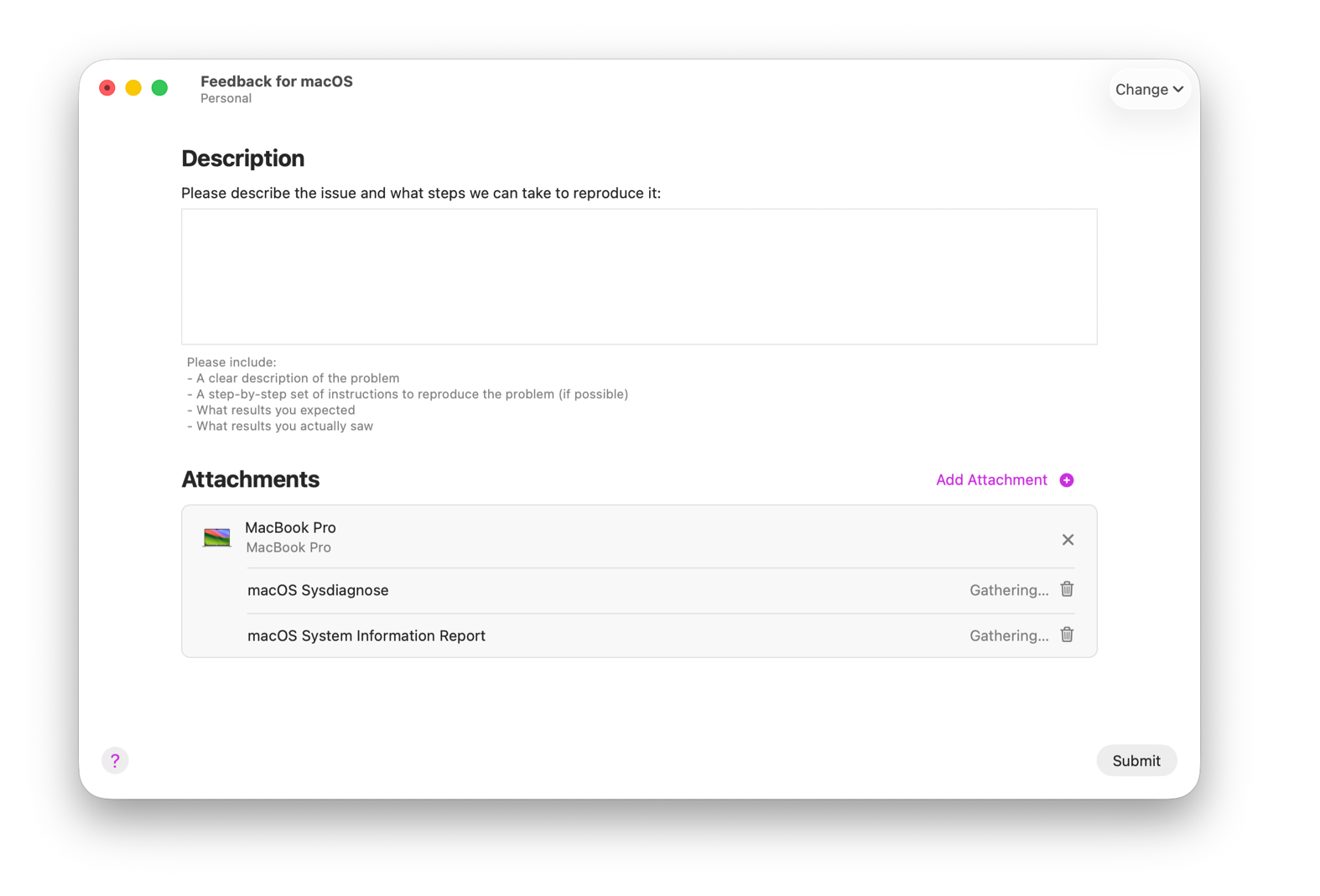
Diagnostic files help Apple investigate the issues you report. When you launch the Feedback Assistant app, diagnostic files are captured automatically and appear as attachments in your feedback report.
You can also capture diagnostic files right after the issue occurred by pressing “Shift + Control + Command + Period”. Your screen will flash and a notification will appear once the diagnostic files have been created.
Send Apple your feedback
Feedback Assistant guides you through the process for reporting issues. Fill out the form, review your answers and diagnostic files, and submit your feedback to Apple.
In order to submit Apple TV feedback, you will need to use the Feedback Assistant app on a beta version of iOS, iPadOS or macOS.
You can launch Feedback Assistant from the second page of your Home screen on the iOS and iPadOS beta and from the Dock on the macOS beta.
Sign in with your Apple Account
Sign in with the same Apple Account that you used to register for the Apple Beta Software Program.
Start a new feedback report
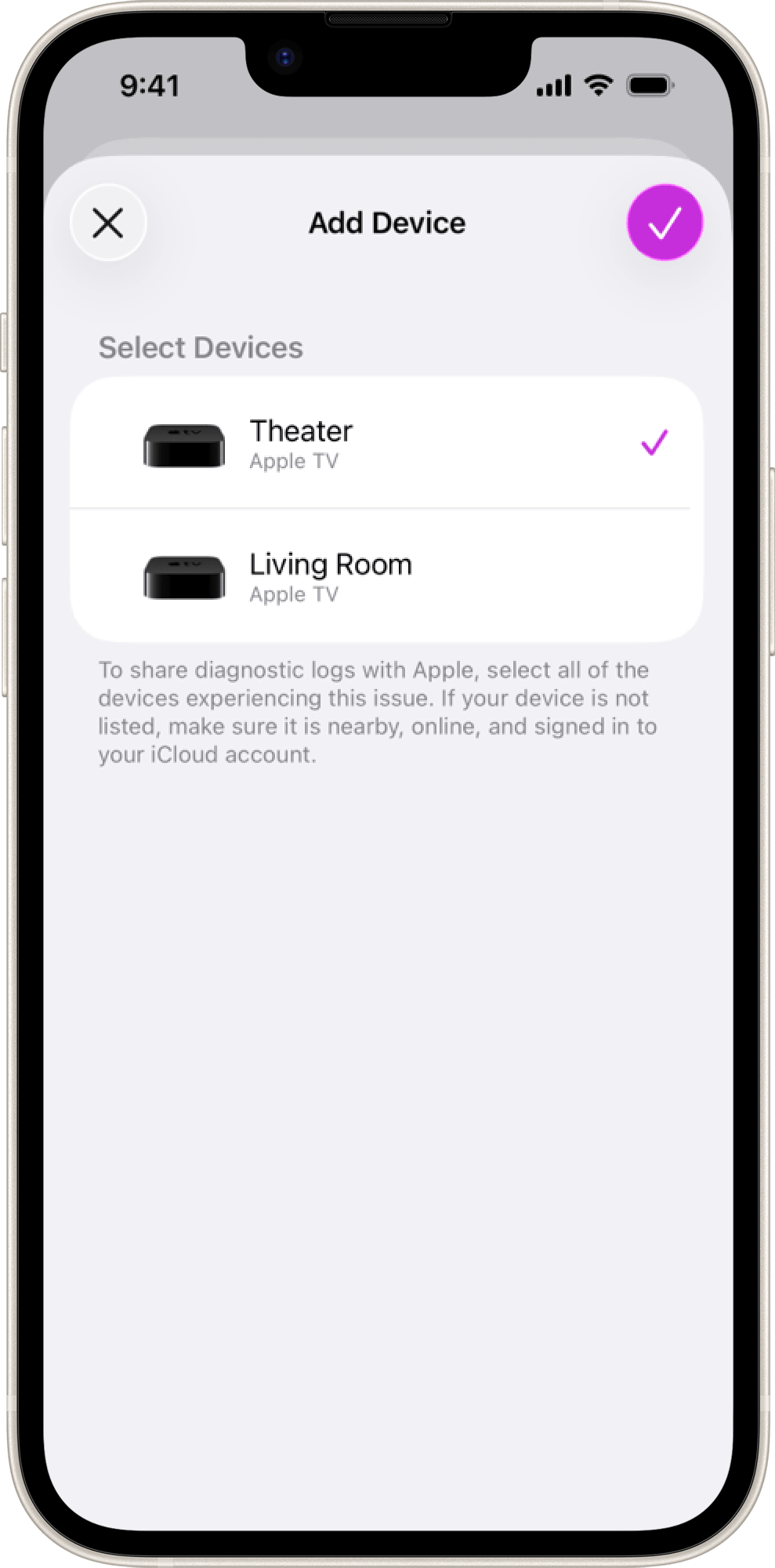
To share feedback on Apple TV, start a new feedback report and select “tvOS” from the list of topics. If you have more than one eligible Apple TV, you’ll be prompted to select the correct one from a list of devices.
If you don’t see your Apple TV, make sure it is nearby, signed in with the same Apple Account as your iPhone, iPad or Mac running the latest beta.
Send Apple your feedback
Feedback Assistant guides you through the process for reporting issues. Fill out the form, review your answers and diagnostic files, and submit your feedback to Apple.
In order to submit Apple TV feedback, you will need to use the Feedback Assistant app on a beta version of iOS, iPadOS or macOS.
You can launch Feedback Assistant from the second page of your Home screen on the iOS and iPadOS beta and from the Dock on the macOS beta.
Sign in with your Apple Account
Sign in with the same Apple Account that you used to register for the Apple Beta Software Program.
Start a new feedback report
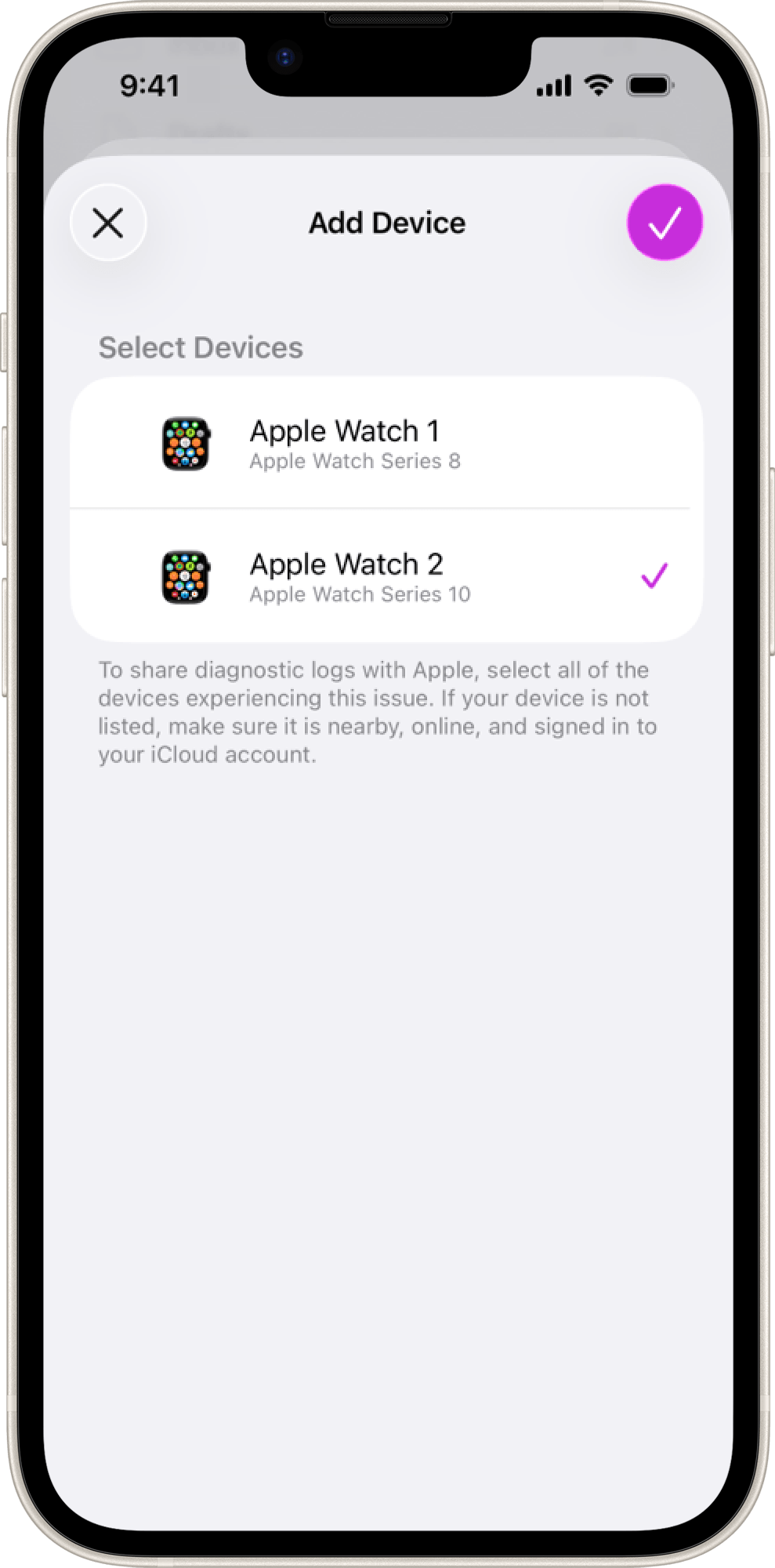
To share feedback on Apple Watch, start a new feedback report and select “watchOS” from the list of topics. If you have more than one eligible Apple Watch, you’ll be prompted to select the correct one from a list of devices.
If you don’t see your Apple Watch, make sure it is nearby, signed in with the same Apple Account as your iPhone, iPad or Mac running the latest beta. If you are filing using the paired iPhone, ensure that your Apple Watch is connected using Bluetooth in Settings > Bluetooth.
Send Apple your feedback
Feedback Assistant guides you through the process for reporting issues. Fill out the form, review your answers and diagnostic files, and submit your feedback to Apple.