
How to download iOS 27.2 Beta 4
Ready to try iOS 27.2 Beta 4? This guide explains how to install it on your iPad, check compatibility, prepare your device, and update to the latest beta.
You can always switch between Developer Beta or Public Beta if you change your mind. Learn about the differences between these two versions.
Is Your iPhone Compatible with iOS 27 Beta?
iOS 27 supports the same devices as iOS 26, that's iPhone 11, iPhone SE (2nd gen), and anything newer. See the full list of supported iPhone models below, or visit the “Can I Update?” page to check compatibility.
Full list of iPhones compatible with iOS 27 beta
- iPhone Duo
- iPhone 18 Pro
- iPhone 18 Pro Max
- iPhone 17e
- iPhone 17
- iPhone 17 Pro
- iPhone 17 Pro Max
- iPhone Air
- iPhone 16e
- iPhone 16
- iPhone 16 Plus
- iPhone 16 Pro
- iPhone 16 Pro Max
- iPhone 15
- iPhone 15 Plus
- iPhone 15 Pro
- iPhone 15 Pro Max
- iPhone 14
- iPhone 14 Plus
- iPhone 14 Pro
- iPhone 14 Pro Max
- iPhone 13
- iPhone 13 mini
- iPhone 13 Pro
- iPhone 13 Pro Max
- iPhone 12
- iPhone 12 mini
- iPhone 12 Pro
- iPhone 12 Pro Max
- iPhone 11
- iPhone 11 Pro
- iPhone 11 Pro Max
- iPhone SE (2nd generation and later)
Back Up Your iPhone
Skip this step if you already backed up your device.
iOS 27 beta is still in development, which means some applications and services may not work as expected. Always back up your data using iCloud or Finder/Apple Devices before installing the beta. This will allow you to restore your data if you decide to downgrade to a previous version of iOS.
Learn how to backup your iPhone
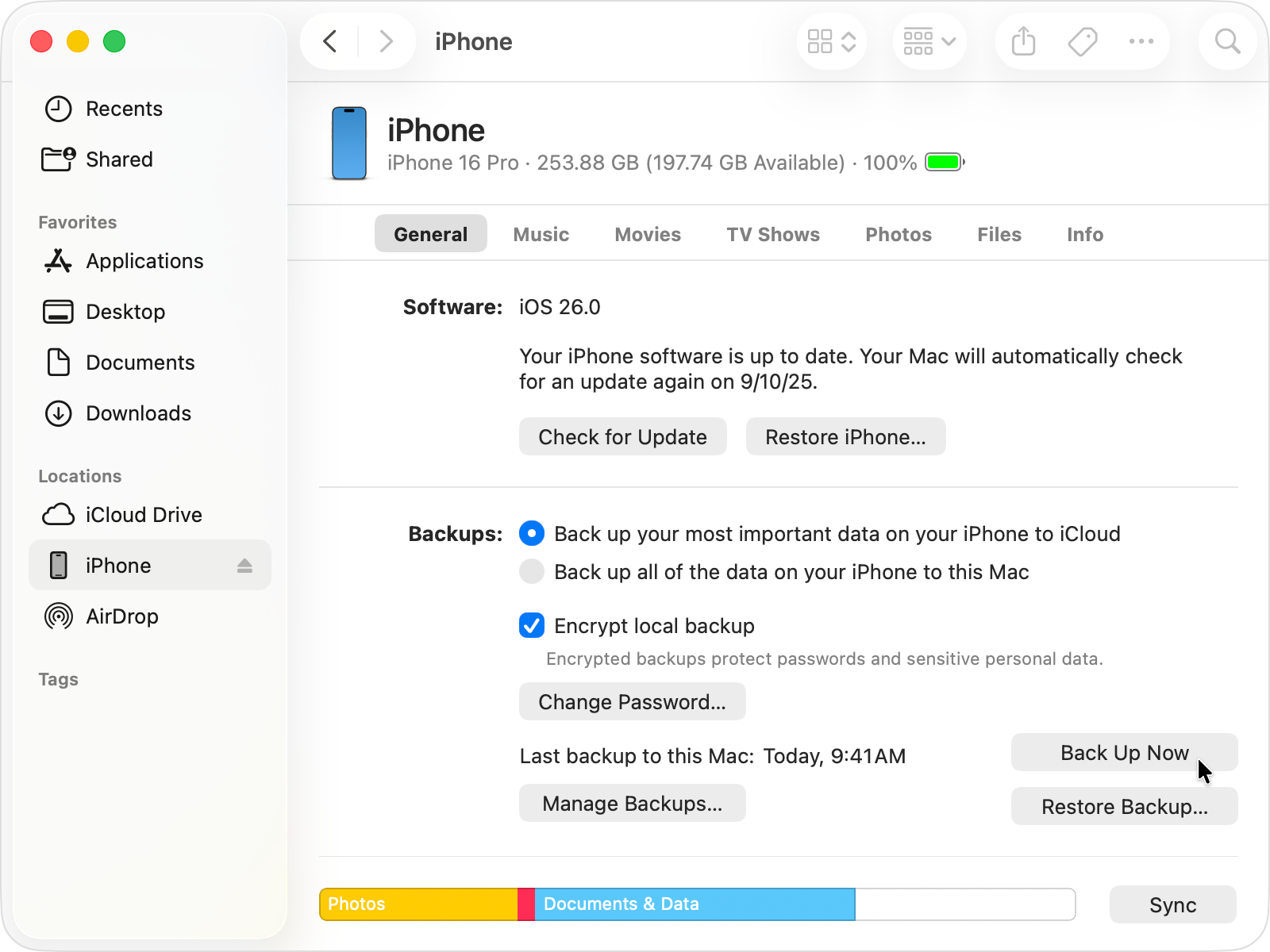
If you don’t have enough iCloud storage, we recommend creating a local backup with Finder or the Apple Devices app and keeping that backup in a safe place before installing the iOS 27 beta.
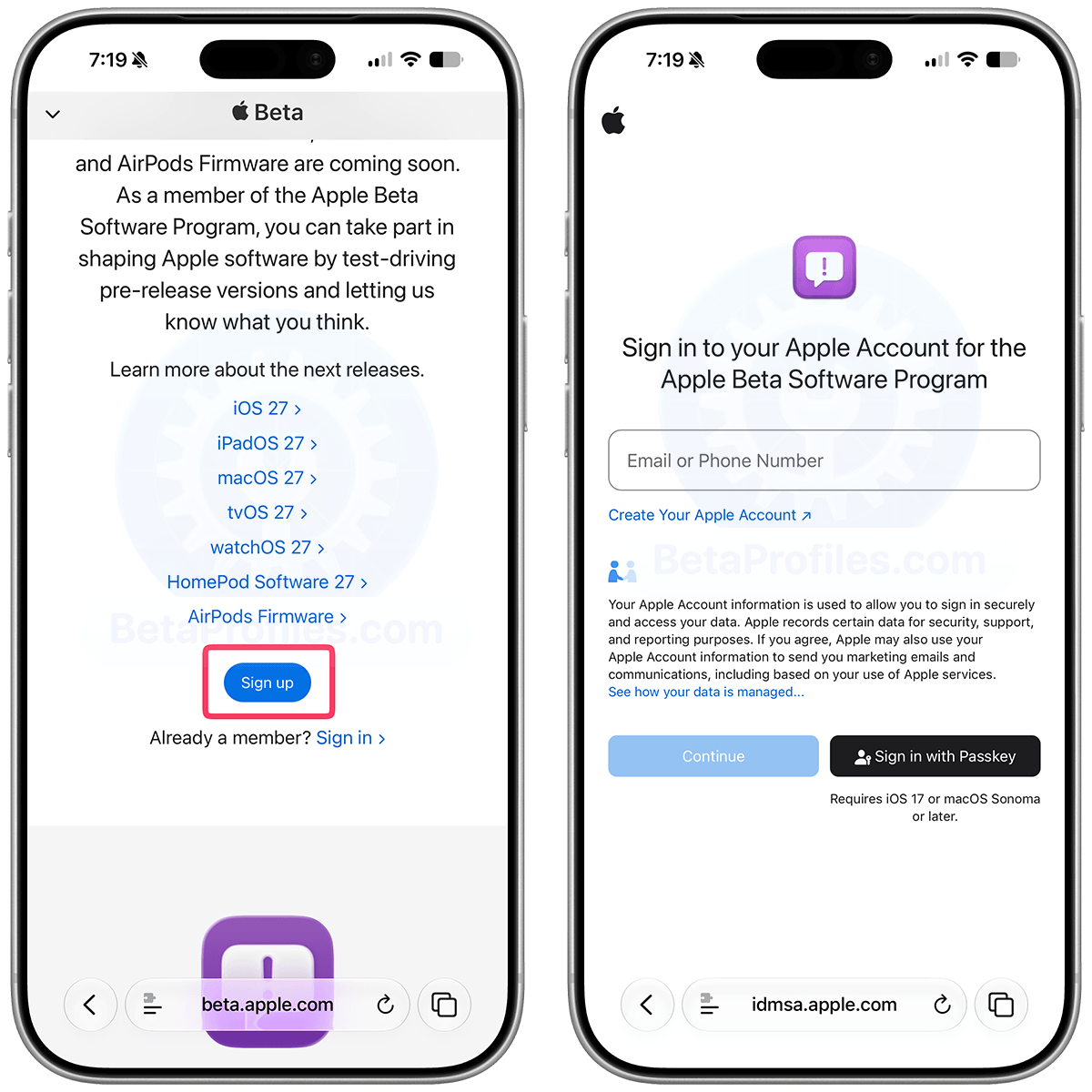
Sign In to the Apple Developer Center
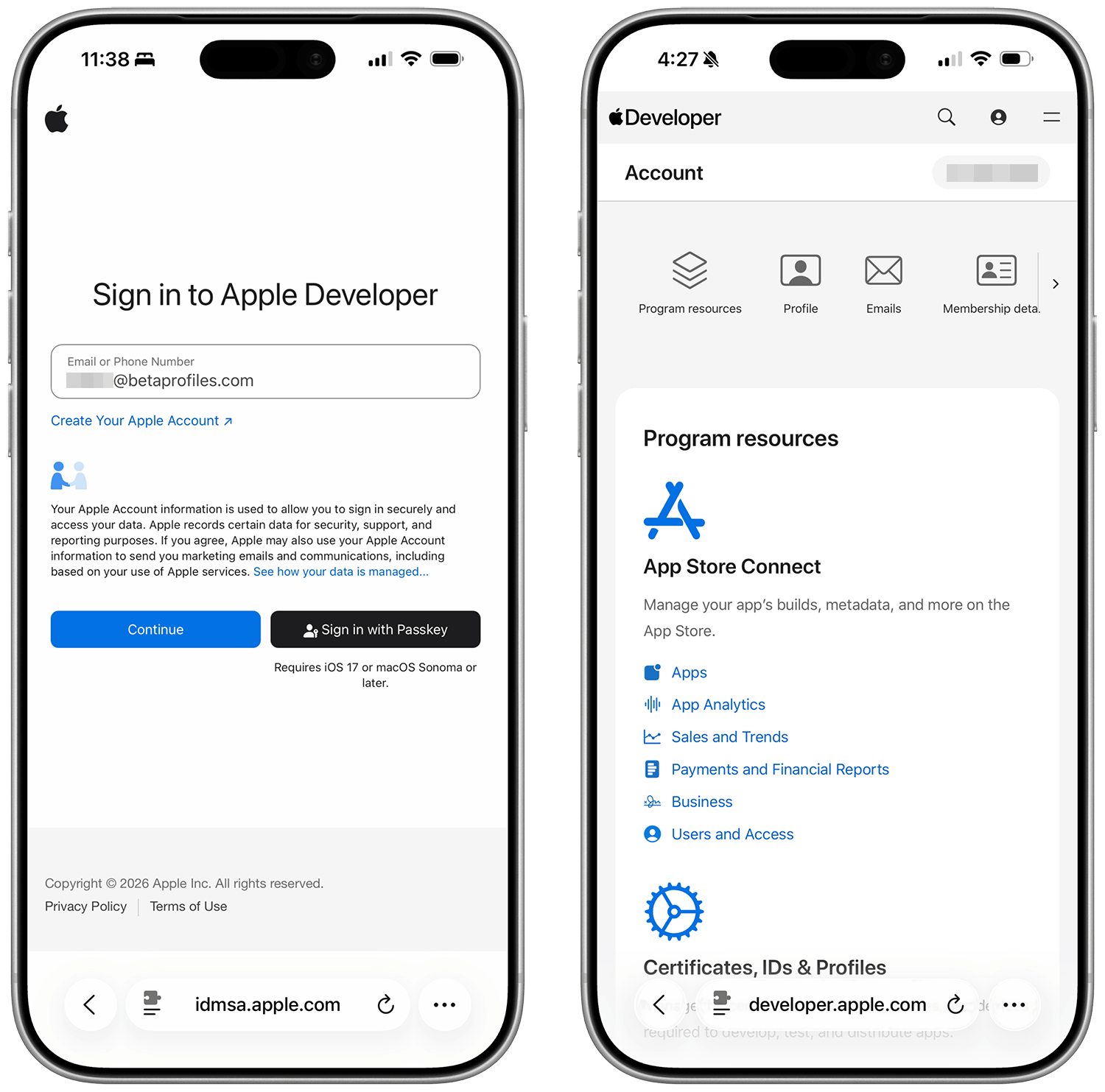
Sign in to developer.apple.com/account ↗ using your Apple Account. You don't need to join Apple's Developer Program, no payment is required, just sign in and agree to the terms and conditions (if any). Then move to the next step.
Enable Beta Updates
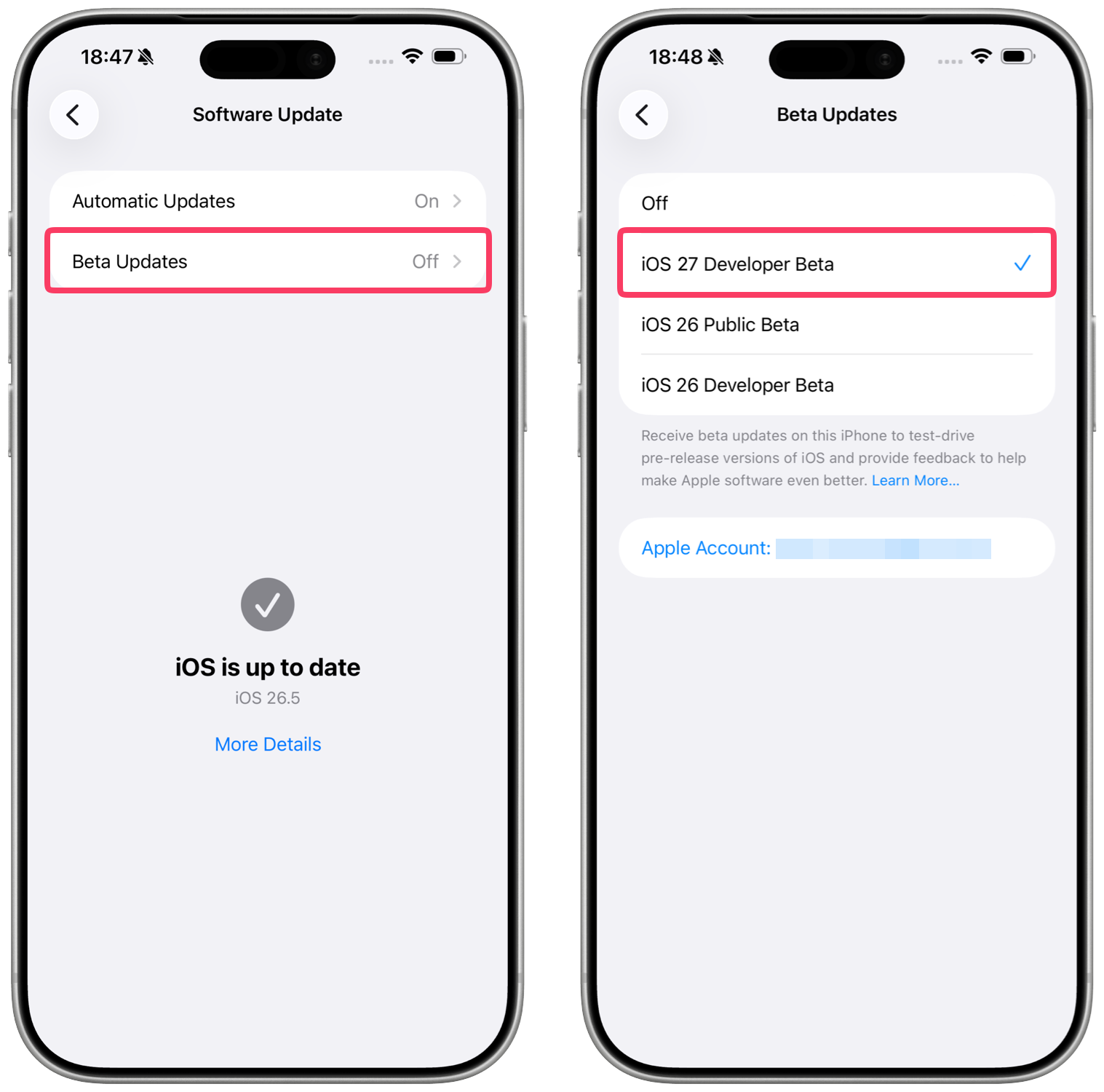
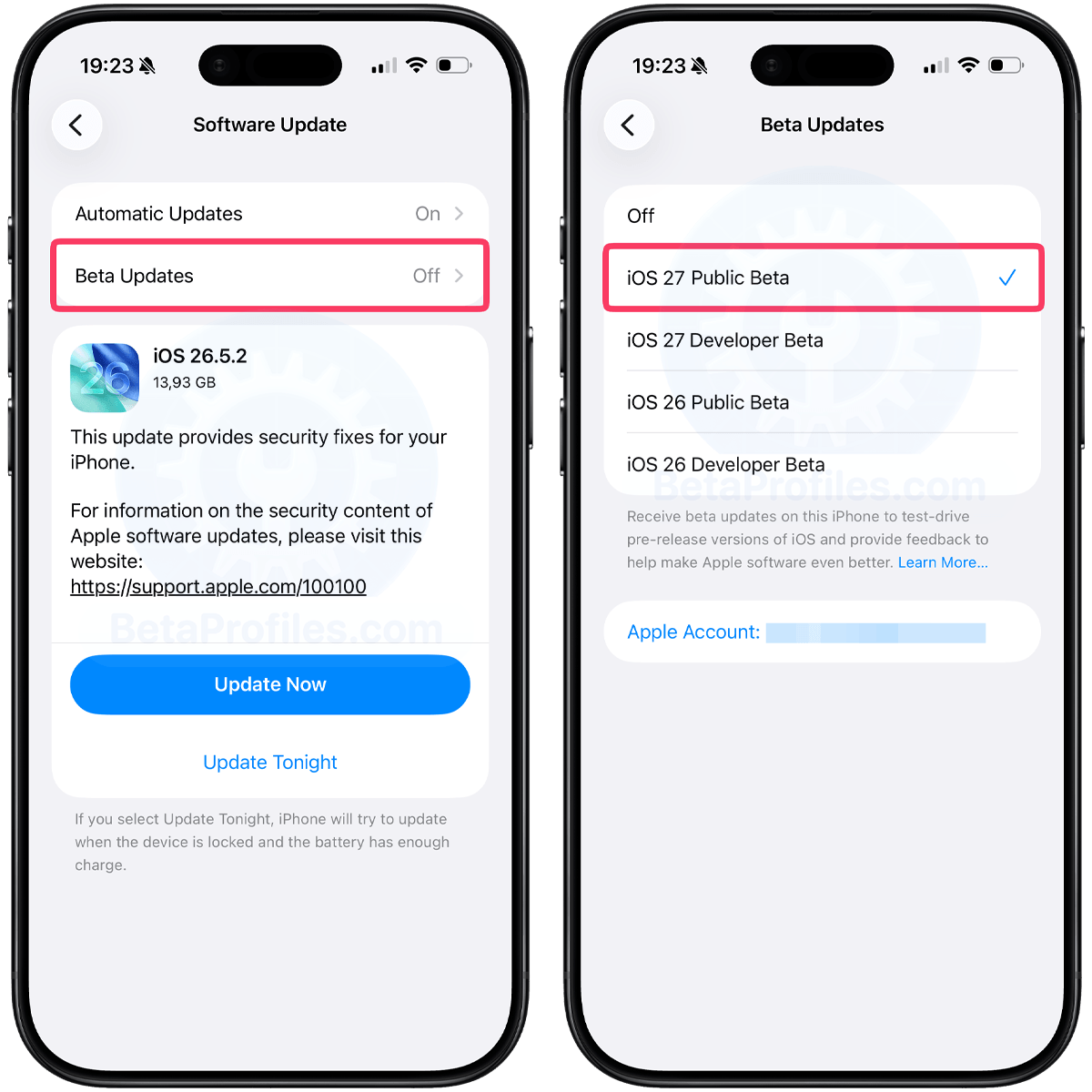
Go to Settings → General → Software Update → Beta Updates and then select the iOS 27 Developer Beta.
If you don’t see the Beta Updates option or iOS 27 Developer Beta, restart your iPhone and check again.
Update Your iPhone
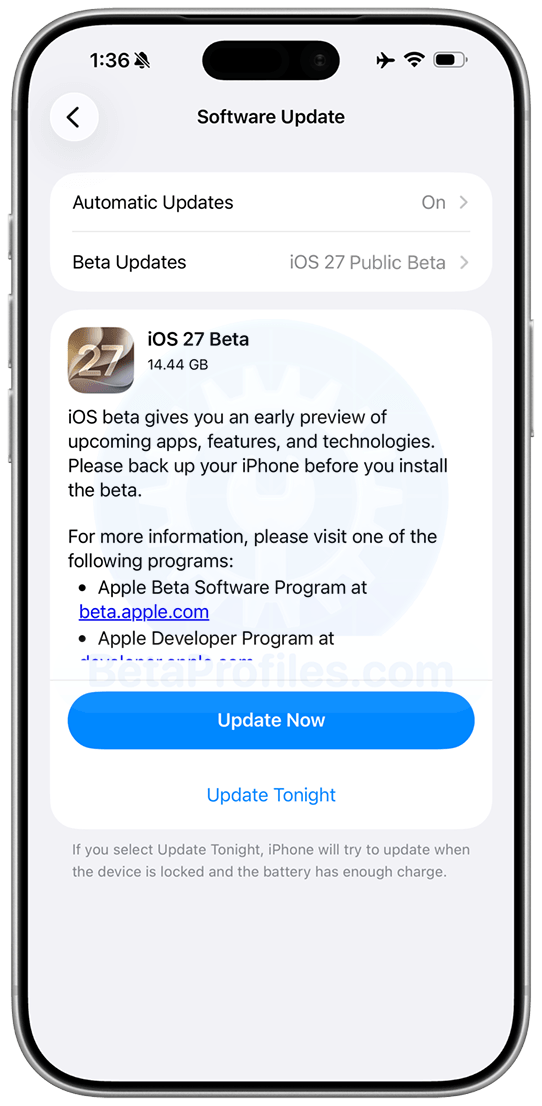
Go back to Software Update, wait a moment for the iOS 27 beta update to appear, then tap the Update Now button to start the download.
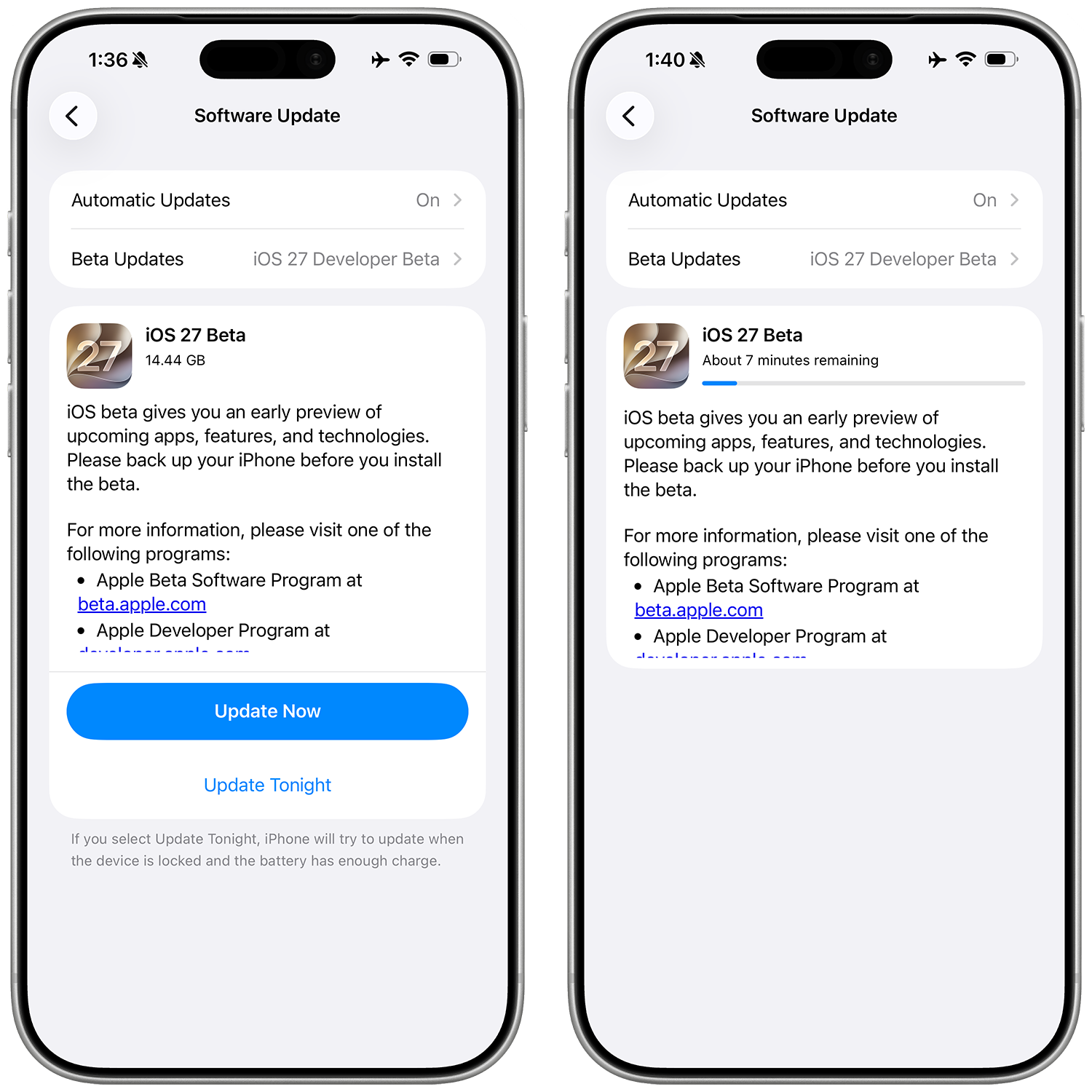
You can always switch to the "Off" option in the Settings → General → Software Update → Beta Updates to stop receiving future iOS 27 beta updates.
However, if you want to roll back to the previous stable version, you'll need to do this through your Mac or Windows PC. How to downgrade iOS 27 beta to a previous version.
Provide Feedback
Once the beta is installed, it will come with a built-in Feedback Assistant app, which can be launched from the second page of your Home screen. When you come across an issue that needs addressing, send your feedback to Apple with Feedback Assistant.
Latest update: July 14, 2026