
How to download macOS Golden Gate 27.2 Beta 3
This guide walks you through installing macOS 27.2 Beta 3 on your Mac. Learn the requirements, check supported models, and follow the steps for a smooth beta installation.
You can always switch between Developer Beta or Public Beta if you change your mind. Learn about the differences between these two versions.
Is Your Mac Compatible with macOS 27.2 Beta?
macOS 27.2 is compatible with all Macs powered by Apple silicon. Intel-based Mac models are no longer supported. Below is the full list of Macs that support macOS 27.2:
List of Macs compatible with macOS 27
- MacBook Neo (2026)
- MacBook Air with Apple silicon (2020 and later)
- MacBook Pro with Apple silicon (2020 and later)
- iMac with Apple silicon (2021 and later)
- Mac mini with Apple silicon (2020 and later)
- Mac Studio (2022 and later)
- Mac Pro (2023)
- MacBook Pro (16 inch, 2019)
- MacBook Pro (13‑inch, 2020, Four Thunderbolt 3 ports)
- iMac (2020)
- Mac Pro (2019)
Back up your Mac
Skip this step if you already backed up your device.
Please note that you are about to install beta software. Always back up your important data and files to the cloud or an external drive. If you own multiple Macs, we recommend installing the beta on one that you use less frequently.
Backing up your Mac is easy with Time Machine, Apple's built-in backup utility.
Learn how to backup your Mac with Time Machine
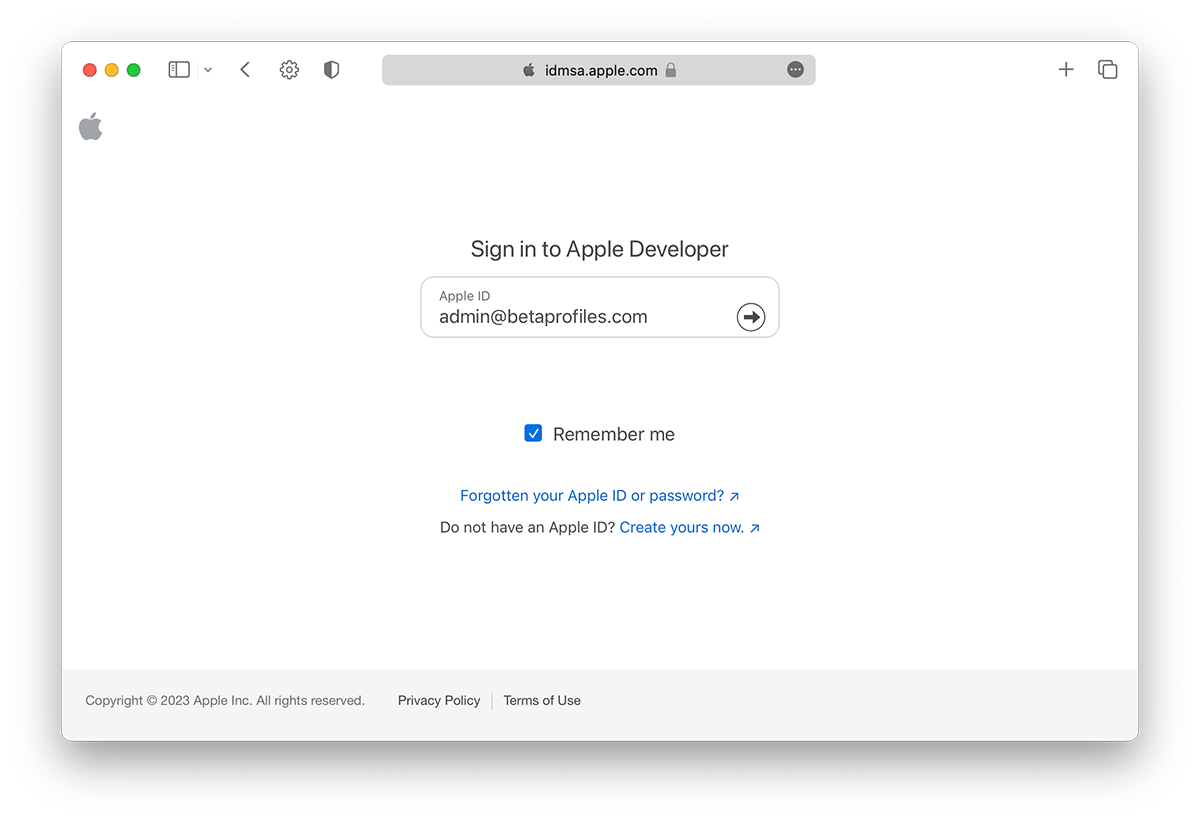
Sign In to the Apple Developer Center
Sign in to developer.apple.com/account ↗ using your Apple Account. You don't need to join Apple's Developer Program, no payment is required, just sign in and agree to the terms and conditions (if any). Then move to the next step.
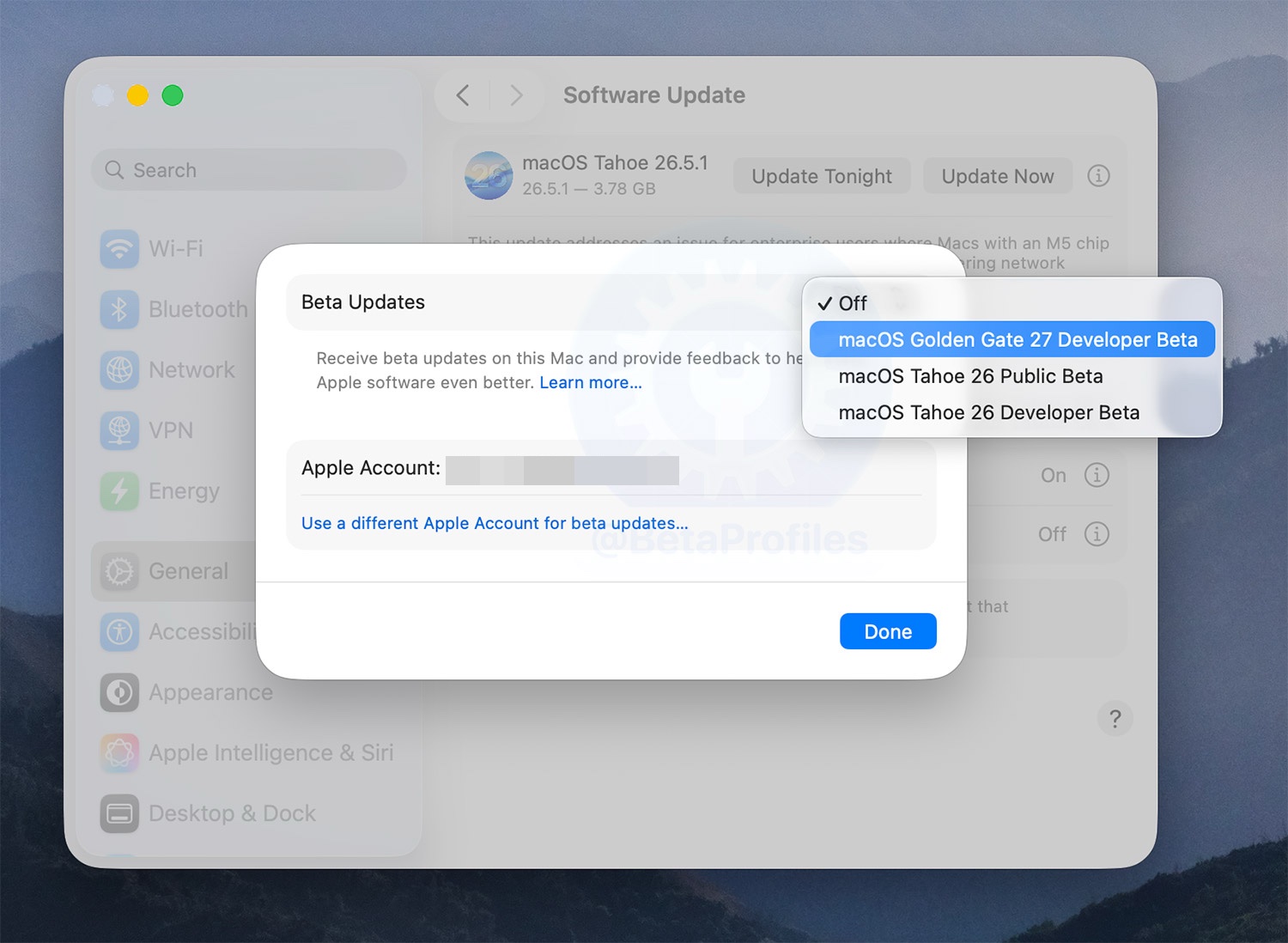
Enable Beta Updates
To get the macOS 27 beta, go to System Settings → General → Software Update and click the “Info” ⓘ button next to "Beta Updates.” Select the macOS Golden Gate 27 Developer Beta.
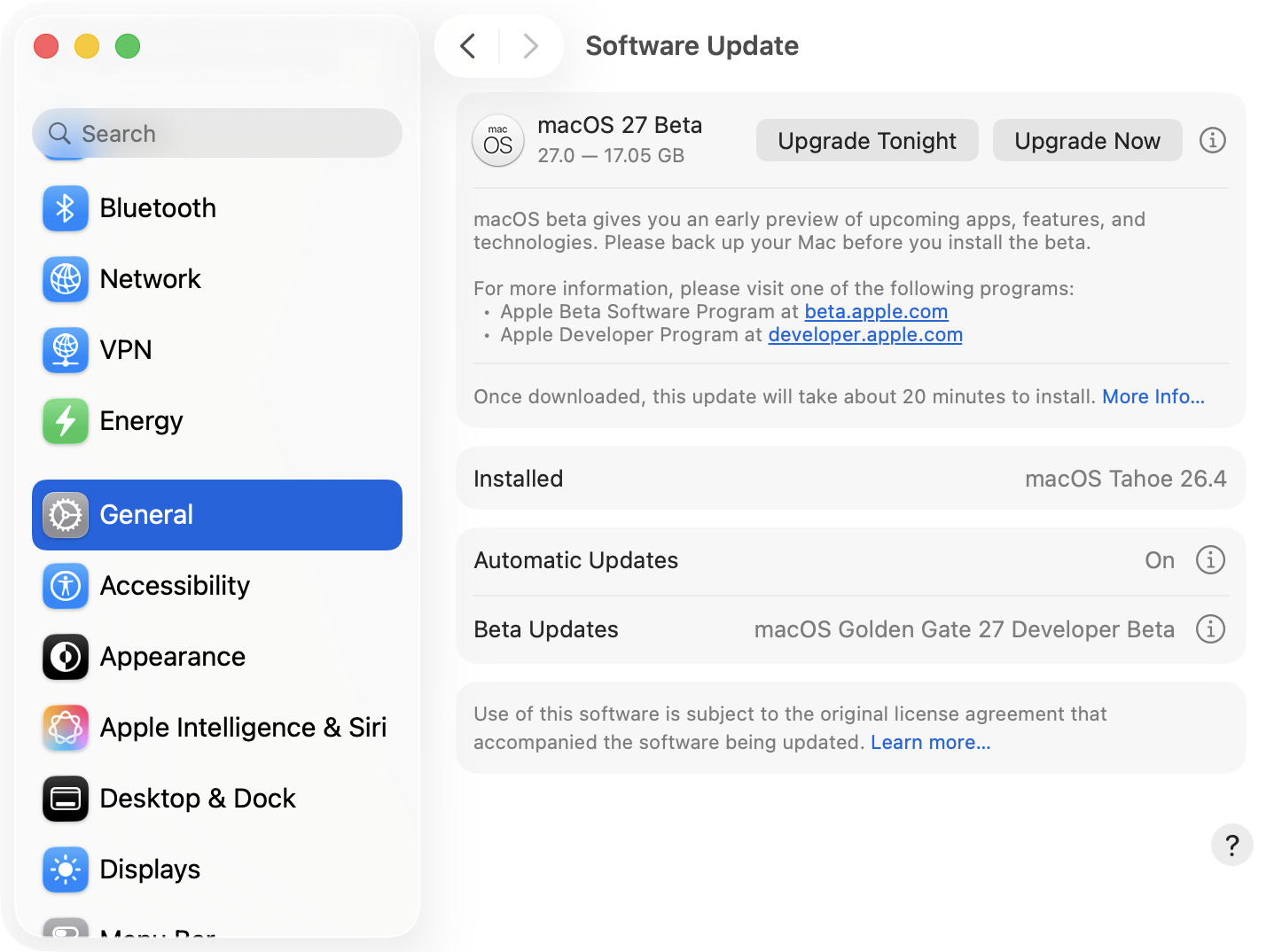
Update Your Mac
You can install macOS 27 beta from Software Update, which appears under General in System Settings. Click Upgrade Now to get the release.
You can always switch to the "Off" option in the Beta Updates to stop receiving future macOS 27 beta updates.
If you want to roll back to the previous stable version, you will probably need a macOS installer for the version you want to roll back to. There's also a Restore guide if you're interested.
Download macOS 27 Beta Installers (.pkg file)
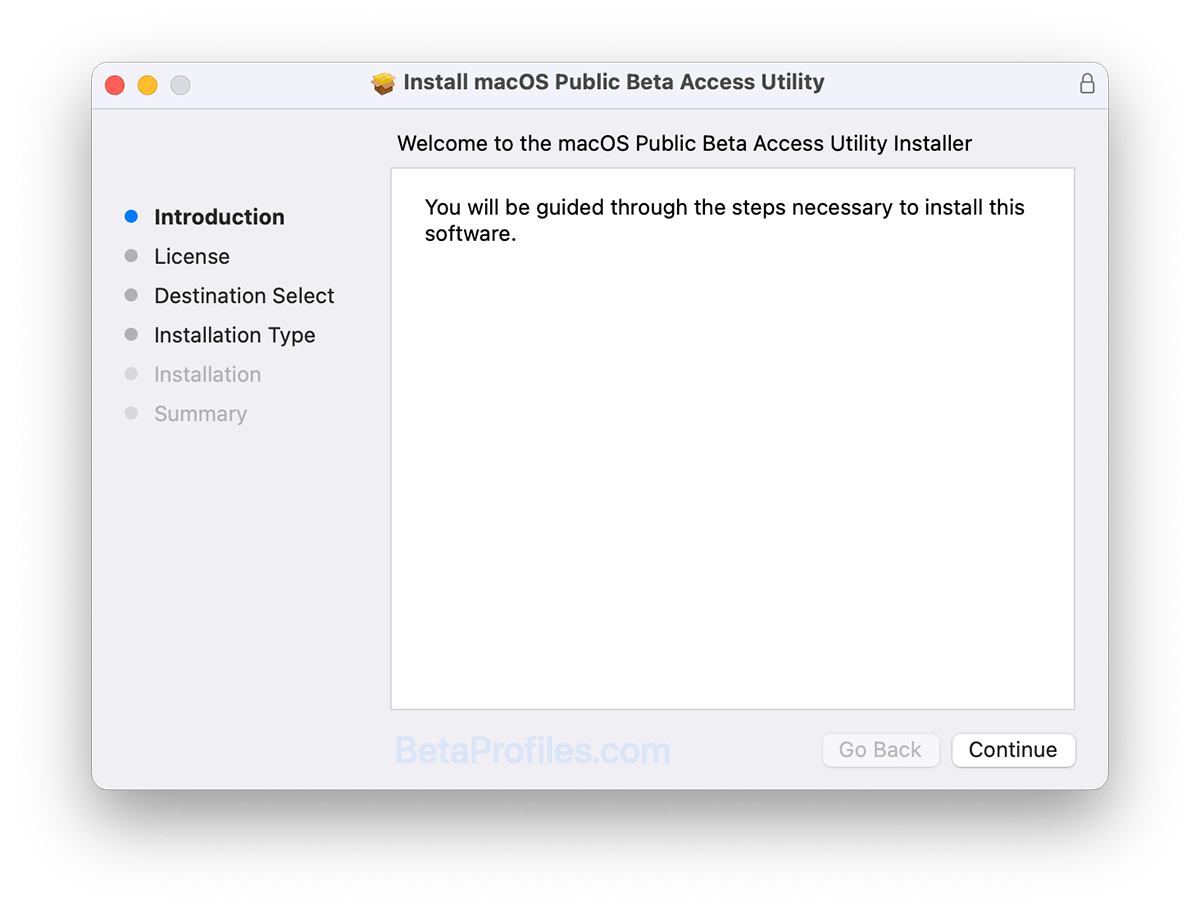
You can also download the full installer below to update macOS 27 beta. After downloading, you will have a file named "InstallAssistant.pkg". Running this file will automatically generate an "Install macOS 27.app" file located in the Applications folder. Double click on it to start the installation.
- macOS 27.2 beta 3 (26B5101f): InstallAssistant.pkg
- macOS 27.0.1 (26A434): InstallAssistant.pkg
- macOS 27.2 beta 2 (26B5091g): InstallAssistant.pkg
- macOS 27.2 beta (26B5086k): InstallAssistant.pkg
- macOS 27.0 (26A428): InstallAssistant.pkg
- macOS 27.0 beta 8 (26A5425a): InstallAssistant.pkg
NOTE: Depending on the browser you are using, you might need to right click and select “Copy link address”. Past this link into a new tab and it should start to download.
Provide Feedback
macOS beta comes with a built-in Feedback Assistant app that lets you send feedback directly to Apple whenever you come across an issue that needs addressing. You can launch Feedback Assistant from the Dock or by selecting 'Send Feedback' from the Help menu.
Latest update: October 6, 2026