 RELEASE
Download Block OTA Update Profile for iPhone and iPad
A simple way to block iOS & iPadOS updates from automatically installing on your iPhone or iPad, allowing you to keep your current firmware.
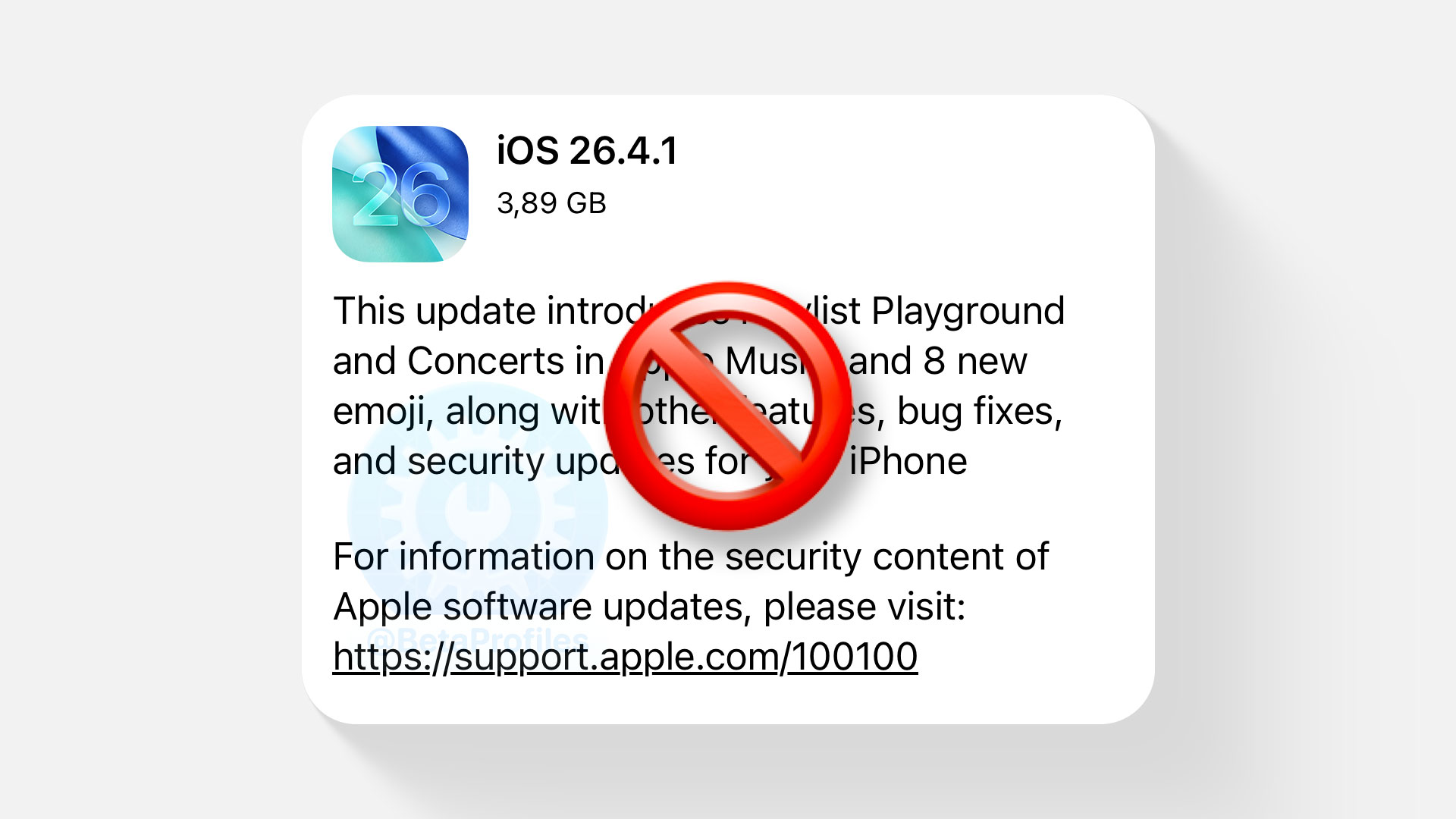
Install Block OTA Profile
- Open this page in Safari and tap the button below to download the Block OTA profile.
- Tap "Allow" if prompted.
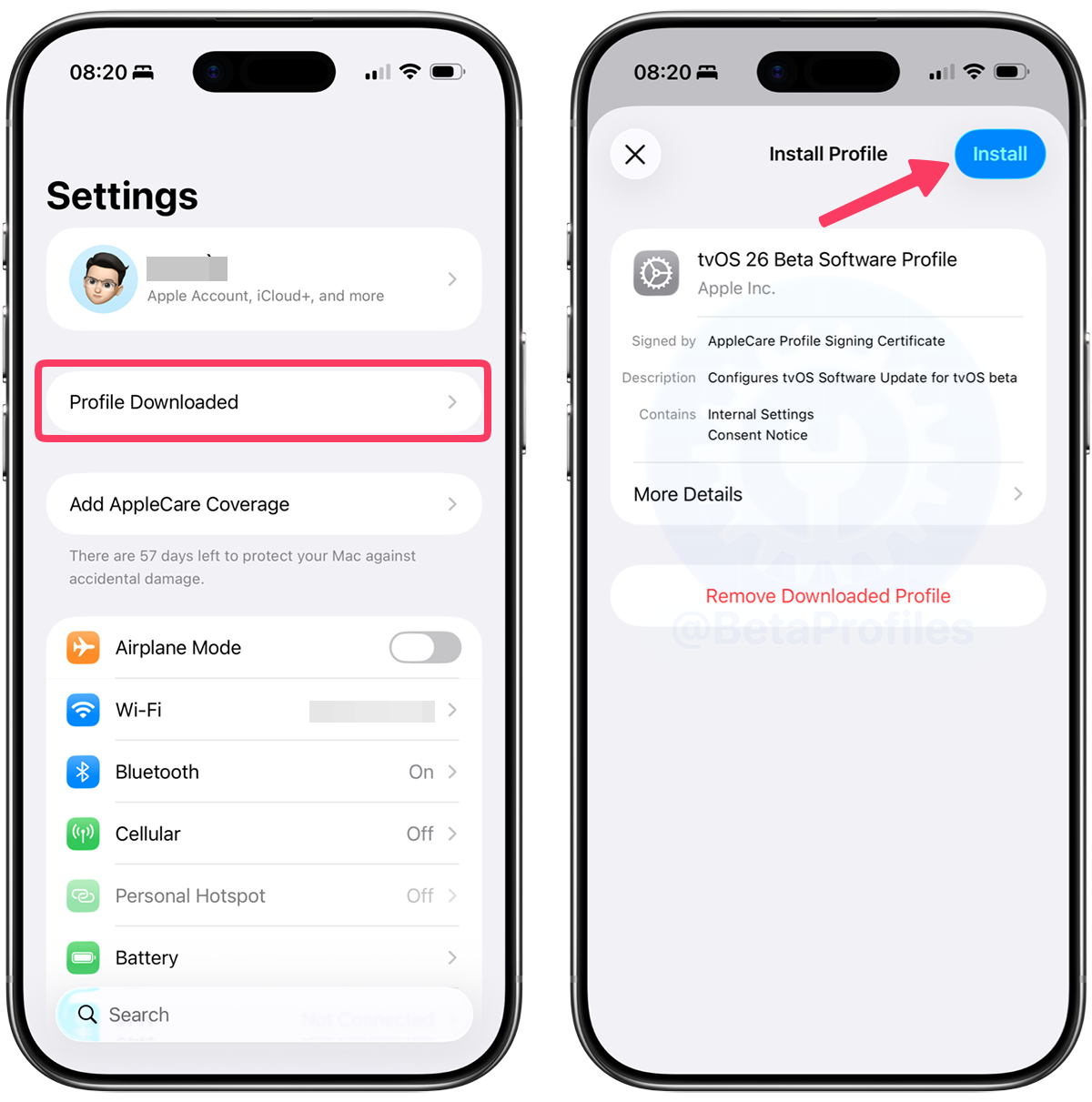
- Go to Settings, and tap Profile Downloaded at the top. If you don’t see the Profile Downloaded menu, go to General → Profile & Device Management (or VPN & Device Management).
- Tap Install in the upper right corner.
- Enter your passcode if prompted.
- Tap Install in the upper right corner.
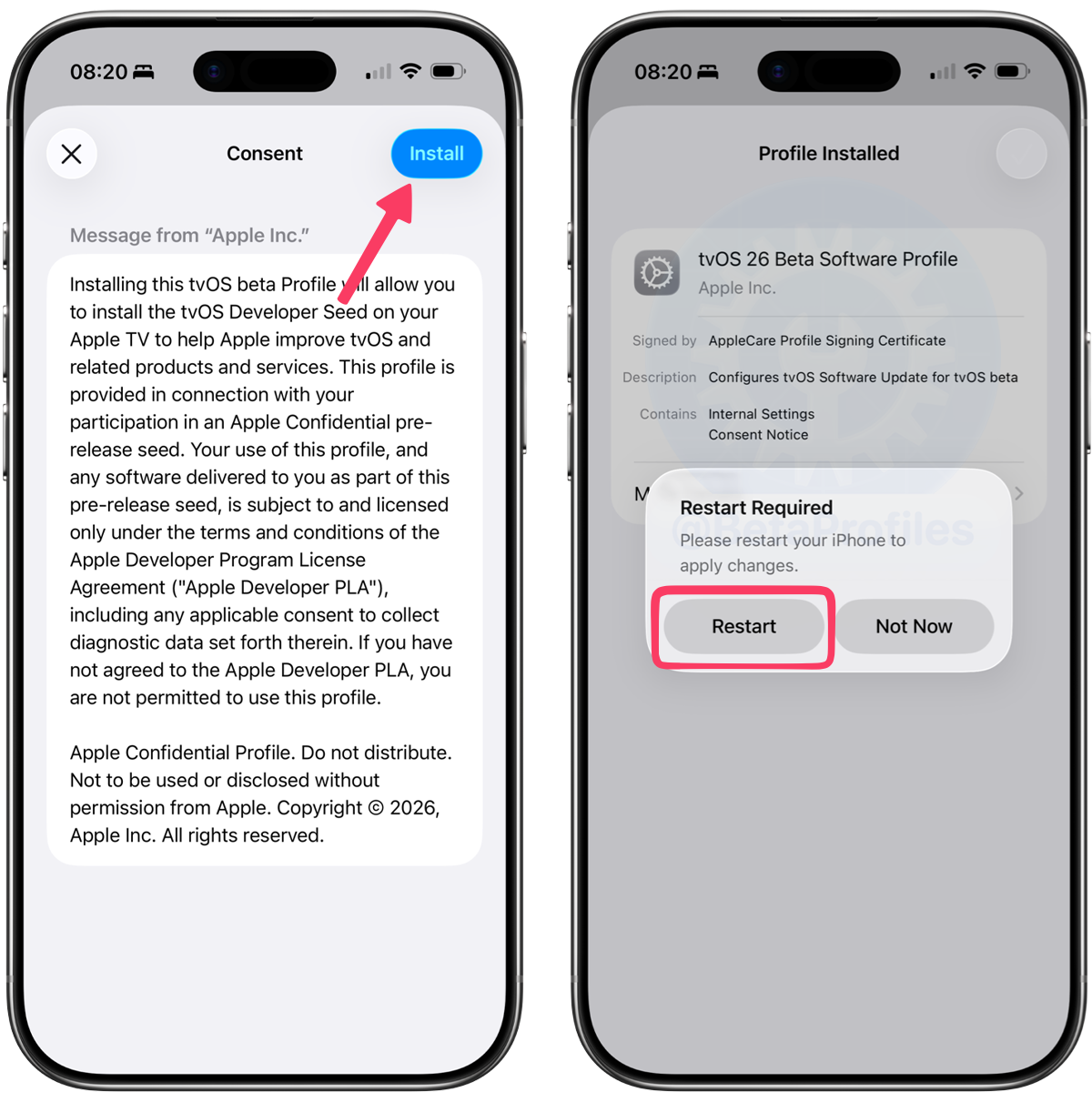
- Tap Install again to confirm.
- Tap Restart.
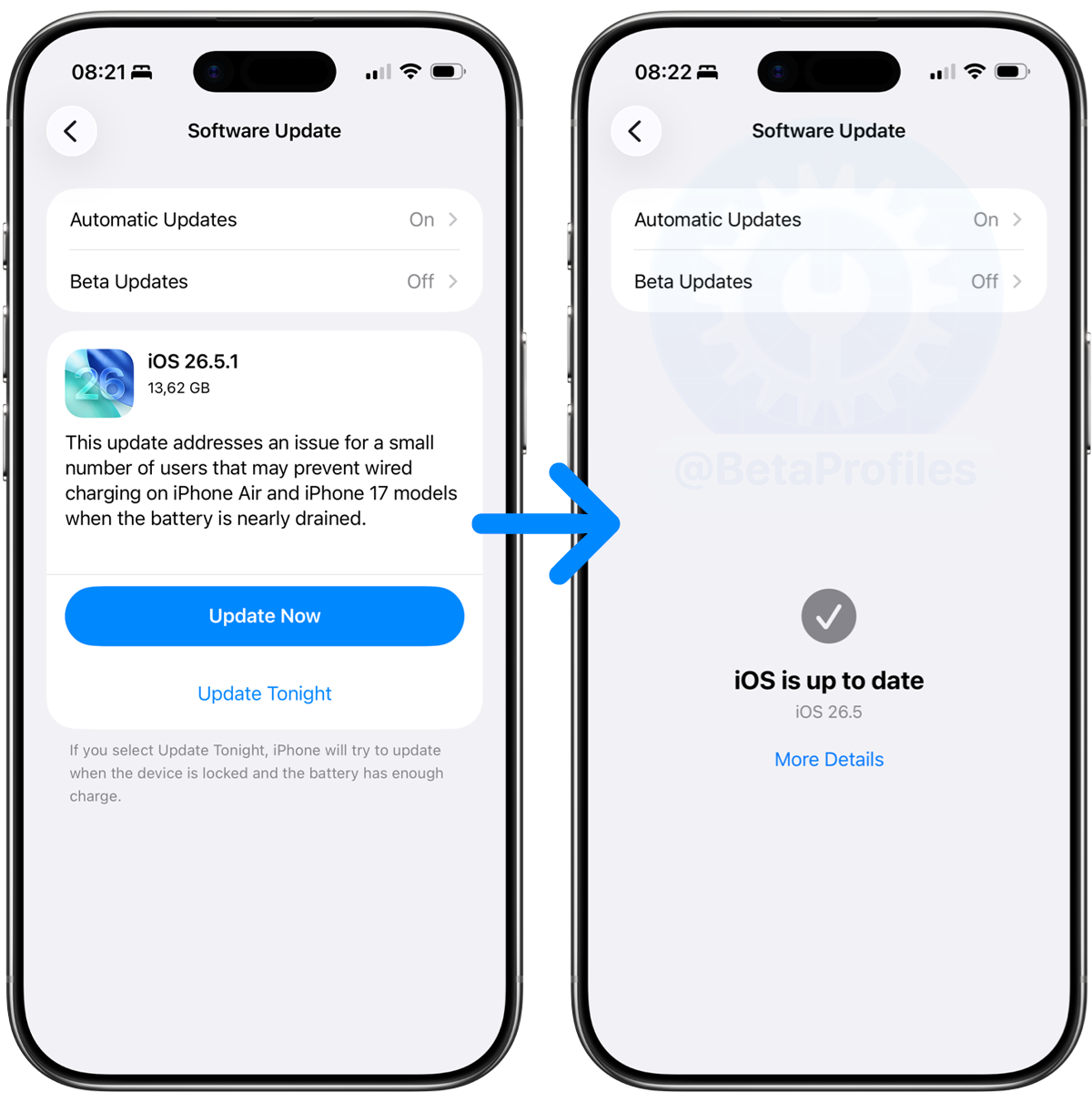
After restarting, go to Settings → General → Software Update. If you see “iOS is up to date,” it means updates have been successfully blocked.
Remove Block OTA Update Profile
You can remove Block OTA Update profile at any time to resume OTA updates. To remove it, follow these steps.
- Go to Settings → General → VPN & Device Management (or Profile & Device Management, or VPN, DNS, & Device Management).
- Tap on the tvOS 26 Beta Software Profile.
- Tap Remove Profile.
- Enter your passcode if prompted, then tap Remove to confirm.
After that, you can update to the latest iOS/iPadOS by going to Settings → General → Software Update.
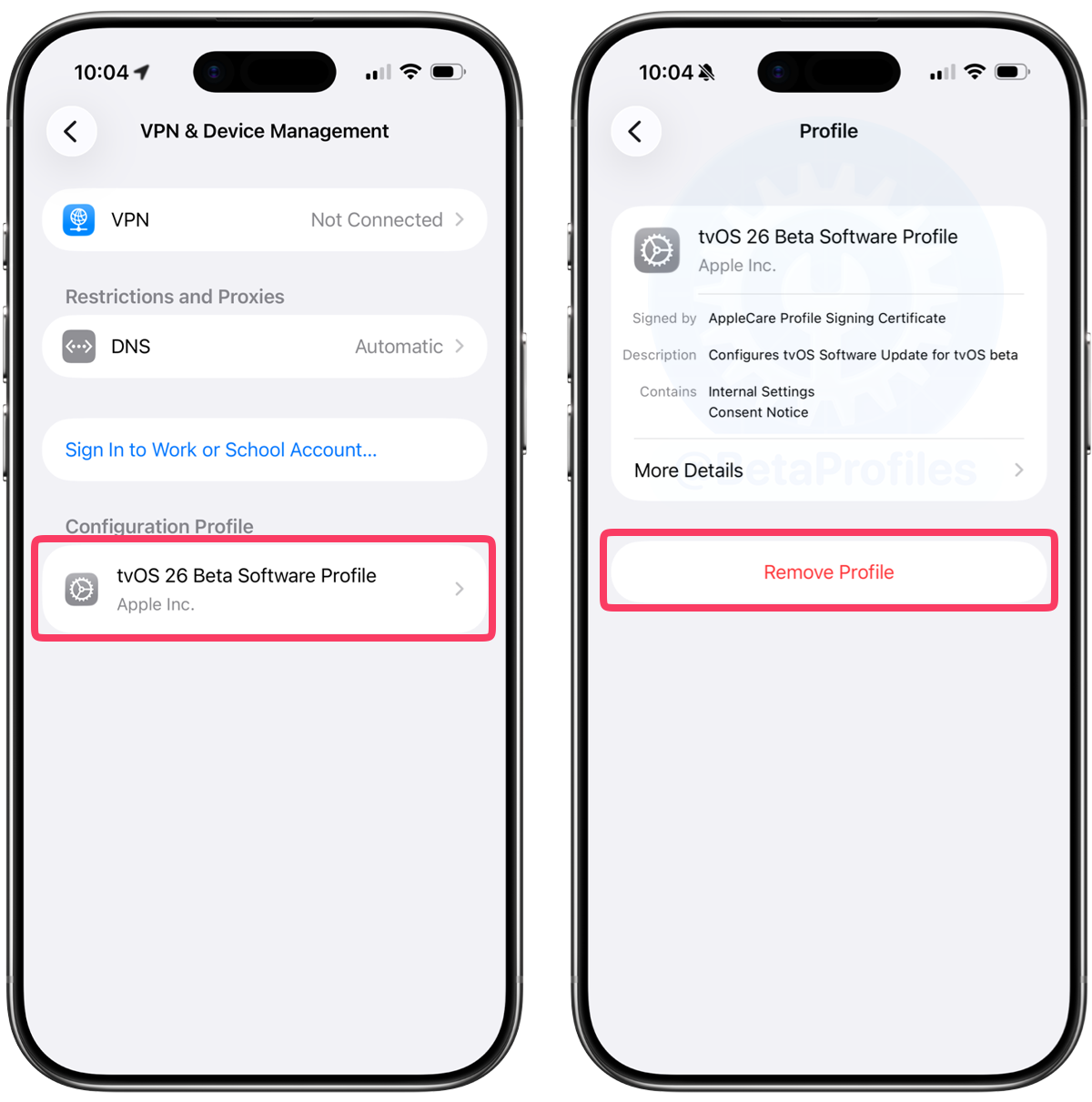
Many thanks to Nebula ↗
Block OTA Profile (DNS Method)
While the tvOS 26 beta profile mentioned above is a simpler and more reliable way to block OTA updates, it does have one downside: the profile eventually expires. Once it expires, your device may automatically update to the latest available version.
There’s also no guarantee that Apple will continue to provide tvOS beta profiles in the future. To address this, developer Mineek released a Block OTA profile that uses DNS to redirect Apple’s software update server to a non-existent address, preventing your device from receiving OTA updates.
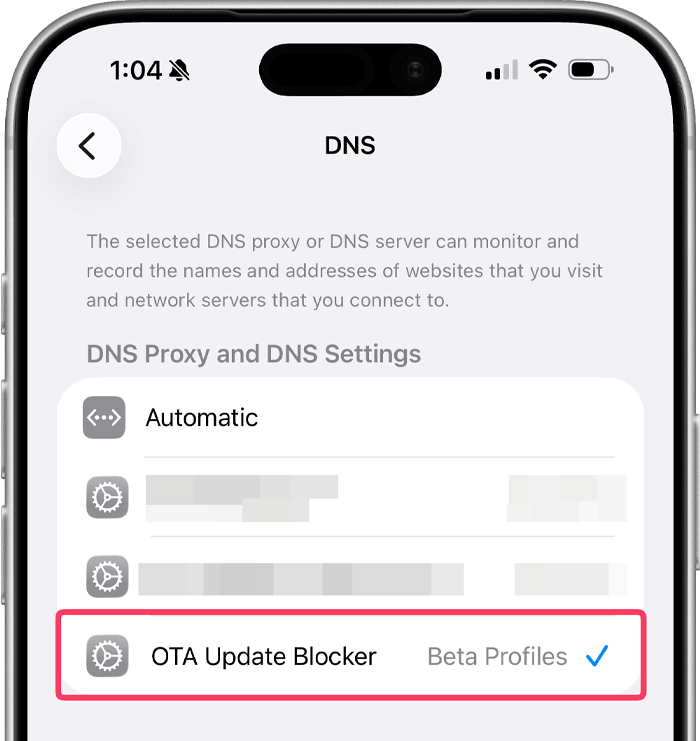
Beta Profiles is keeping this profile available as a backup option in case the tvOS 26 beta profile expires, or for anyone who prefers to use the DNS method.
Here’s how to install the Block OTA profile (DNS method):
- Open this page in Safari and tap the button below to download the Block OTA profile.
- Tap "Allow" if prompted.
- Go to Settings, and tap Profile Downloaded at the top. If you don’t see the Profile Downloaded menu, go to General → Profile & Device Management (or VPN & Device Management).
- Tap Install in the upper right corner.
- Enter your passcode if prompted.
- Tap Install in the upper right corner.
- Tap Install again to confirm. You do not need to restart your device.
Latest update: August 21, 2026