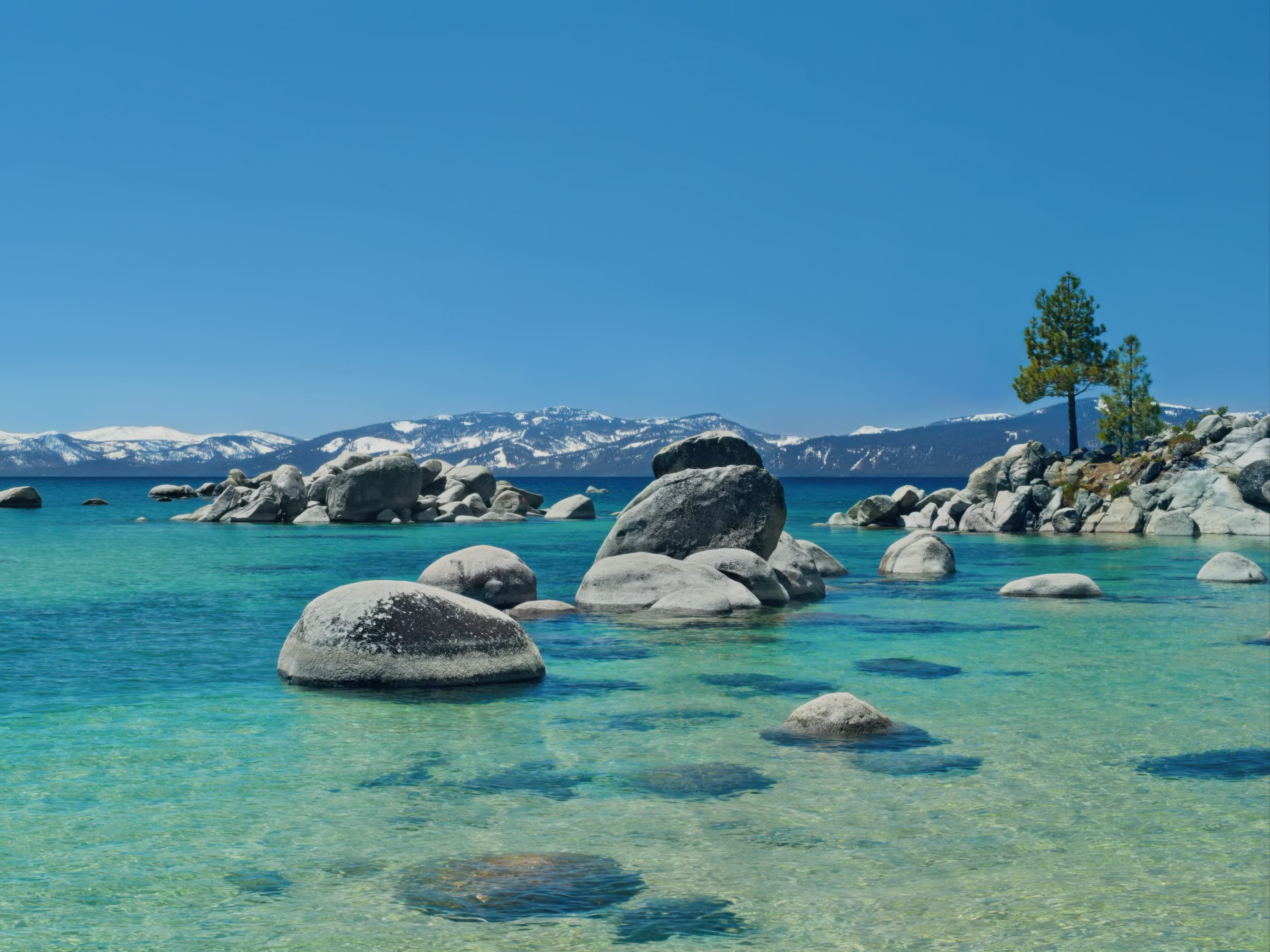
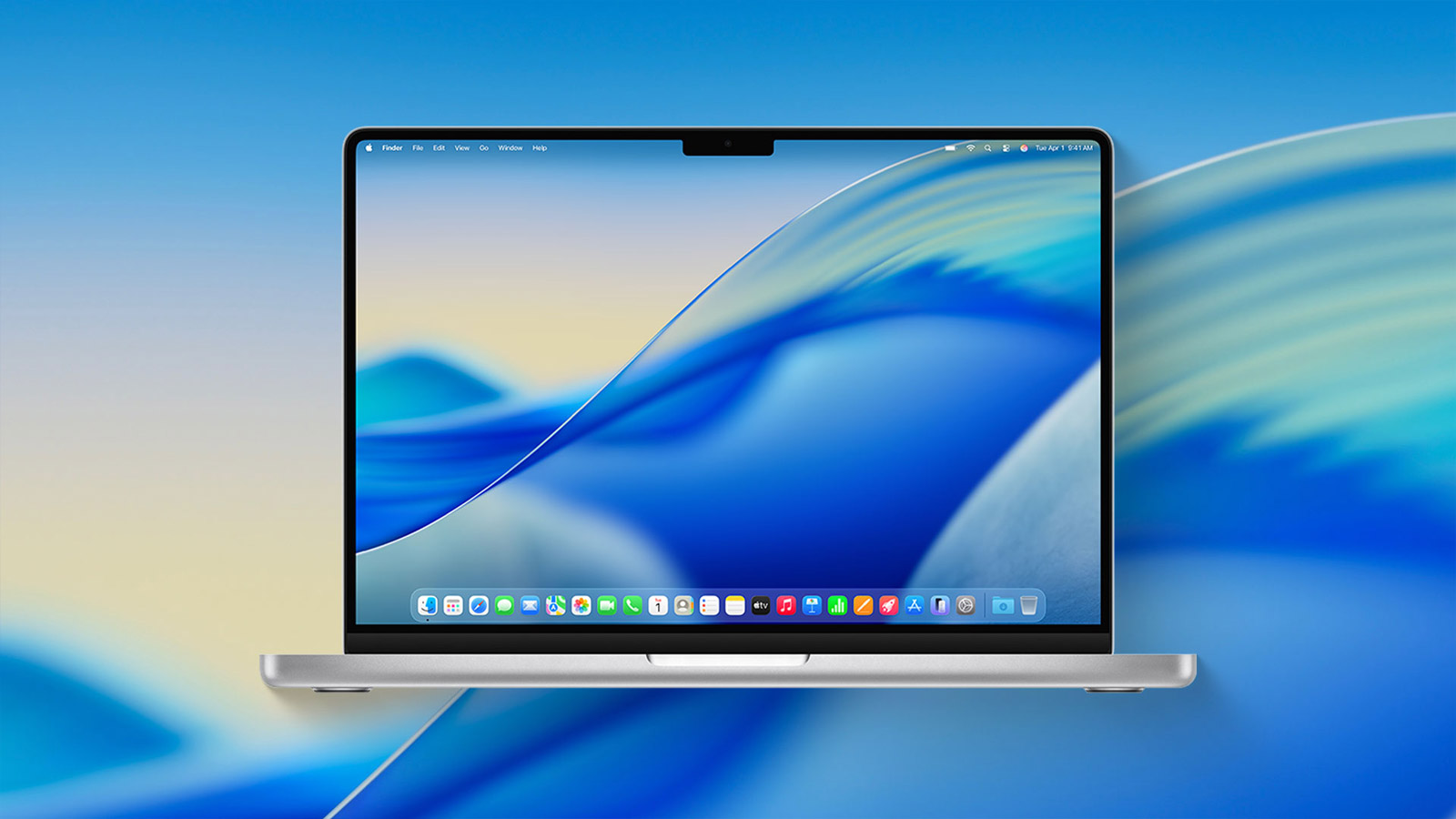
Official macOS Tahoe 26 Wallpaper
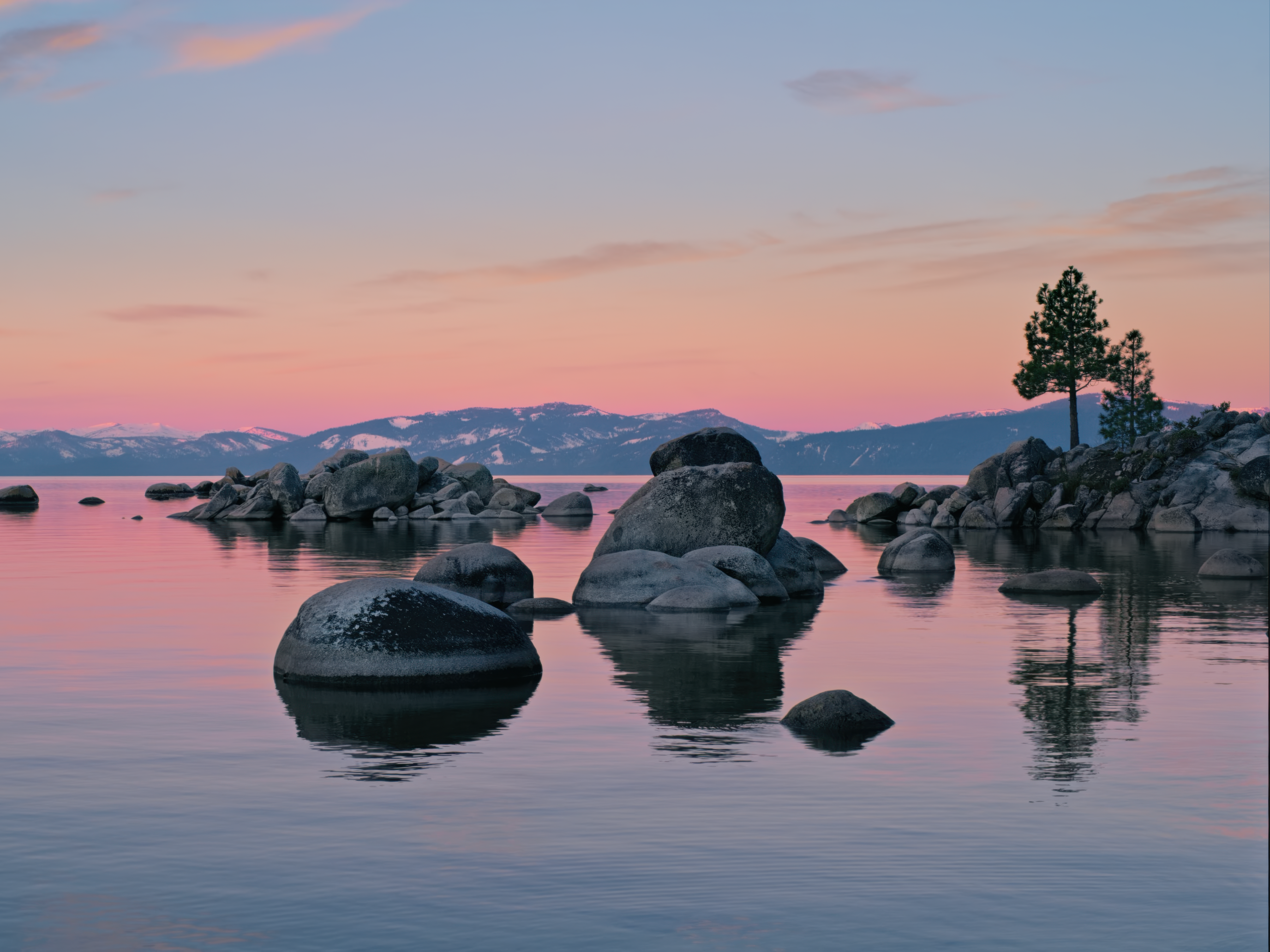
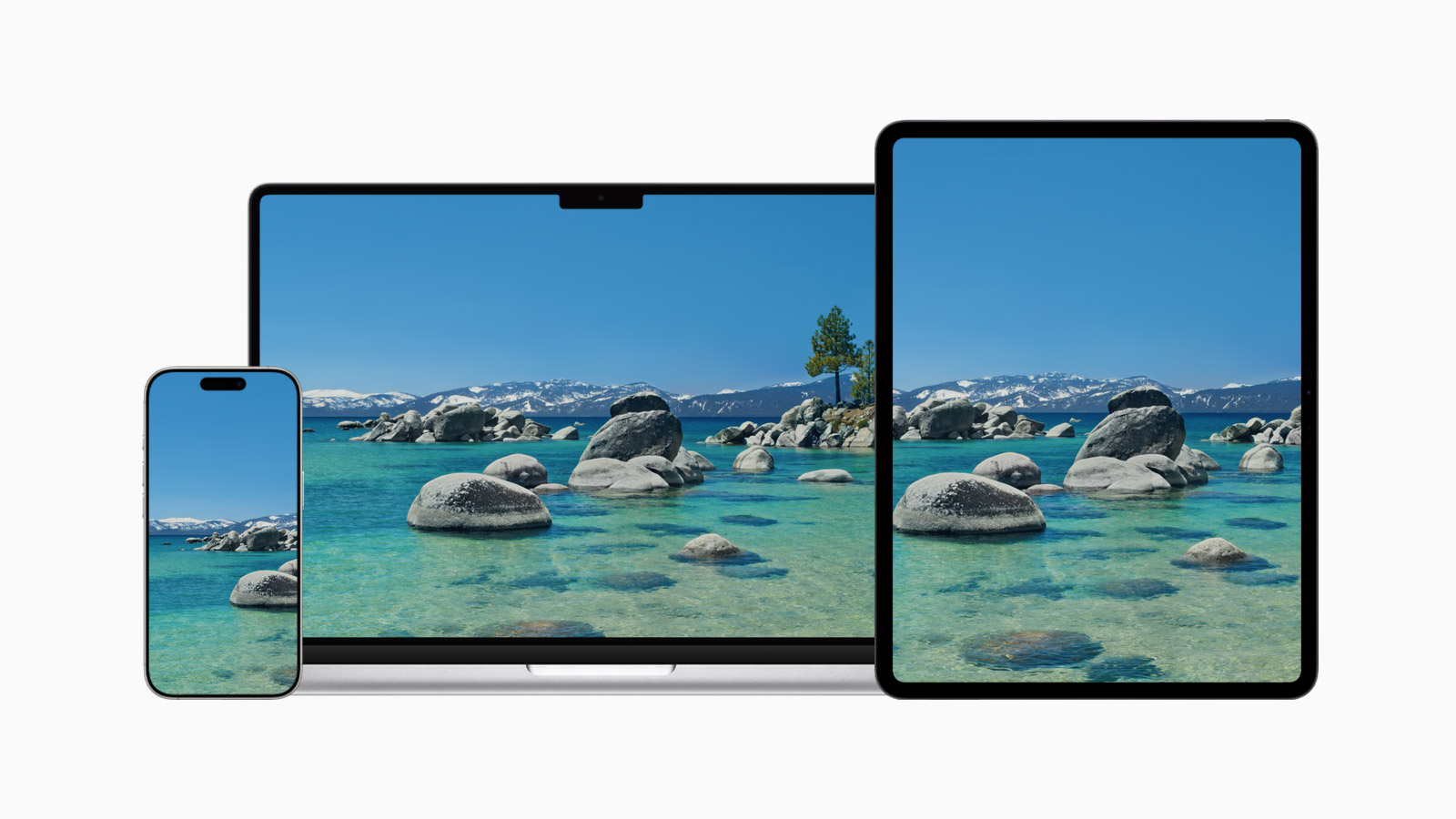
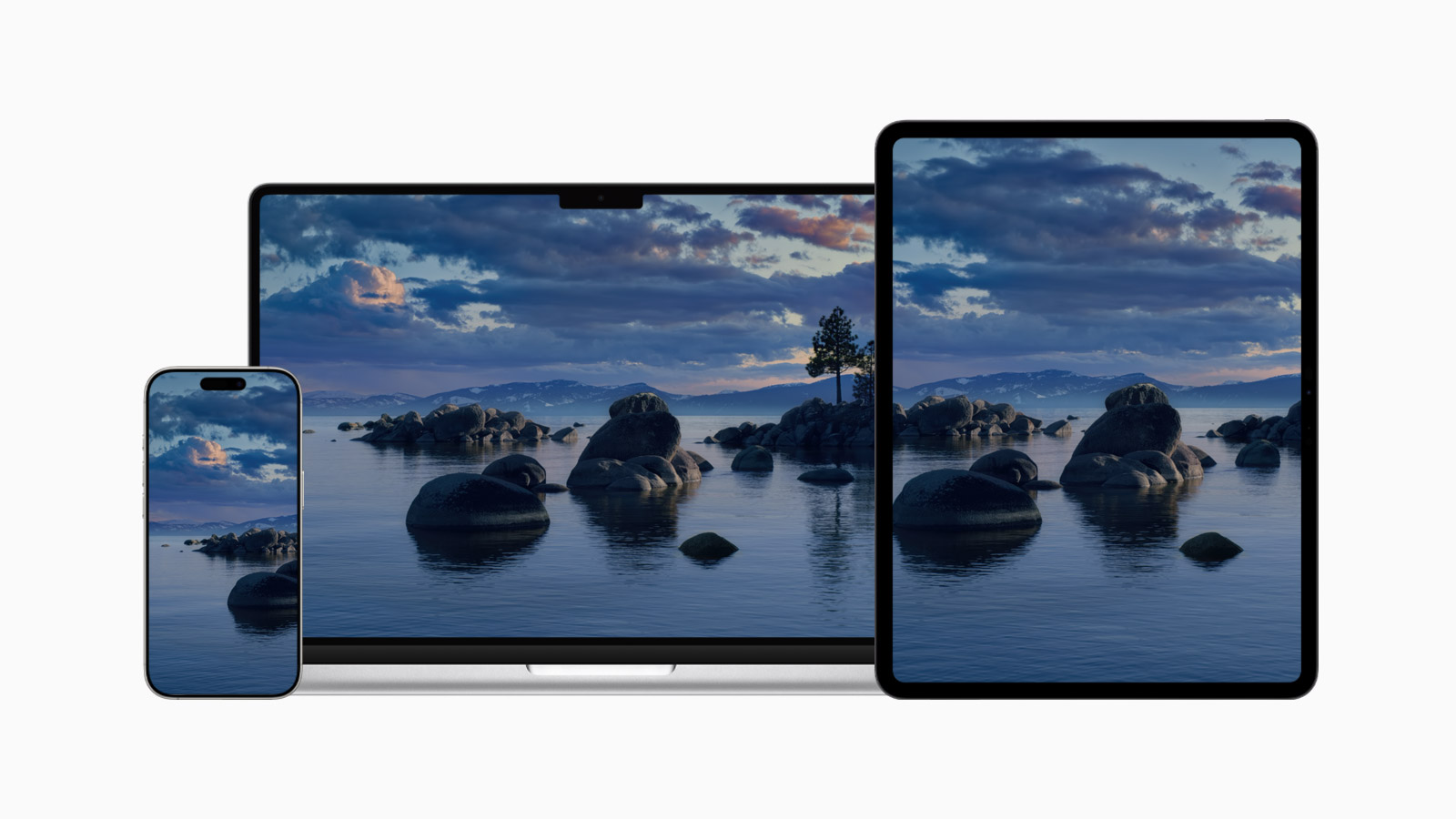
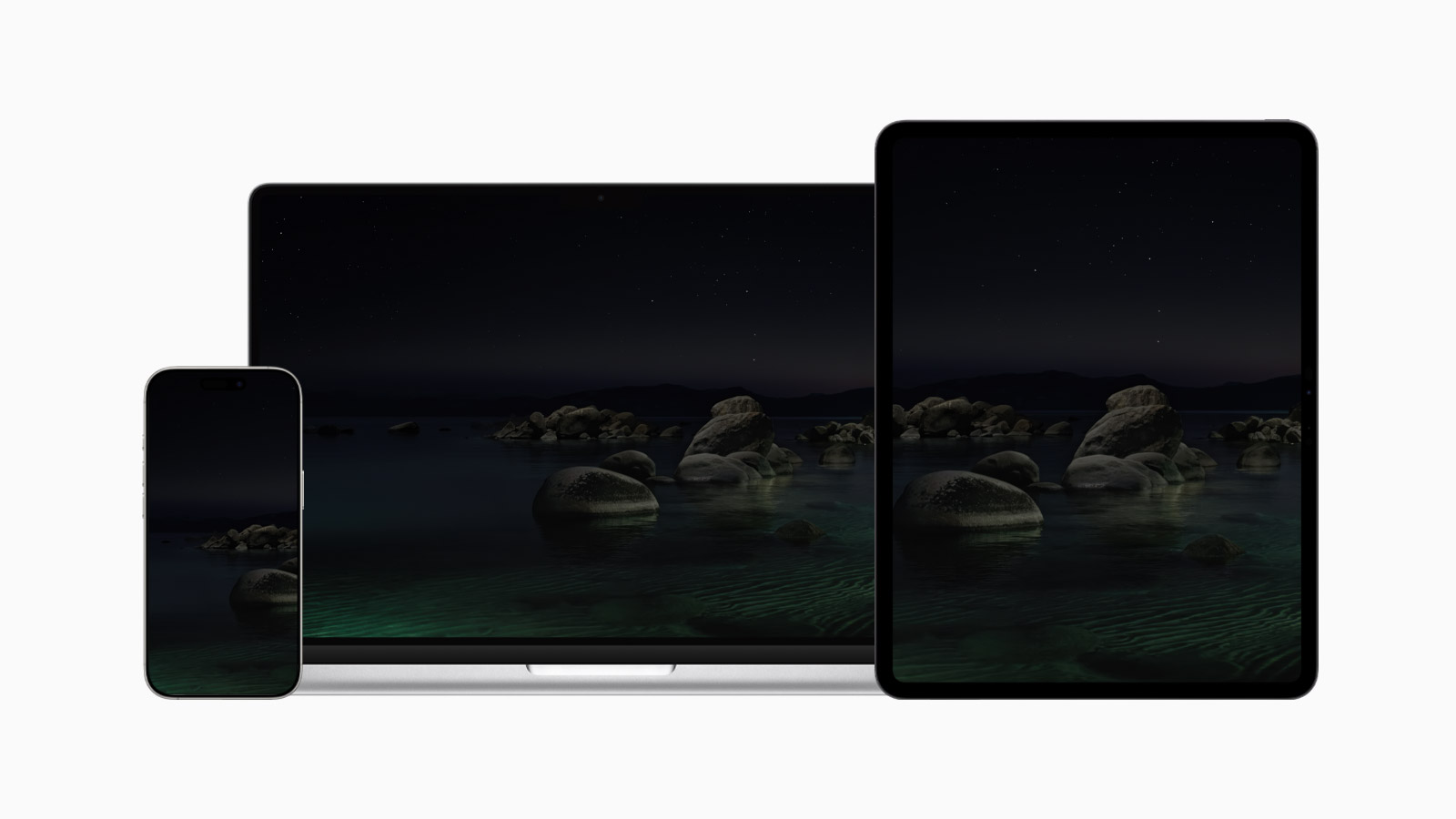
The official macOS Tahoe wallpaper, inspired by the stunning Lake Tahoe in California.
Available for
iPhone
iPad
Mac
Apple introduced macOS Tahoe 26 at WWDC25 with an all-new Liquid Glass design to match its other operating systems. It includes the dynamic Tahoe wallpaper and a set of landscape wallpapers captured at Lake Tahoe from dawn to night. You can download the static versions of these wallpapers below.
Last updated:
Download
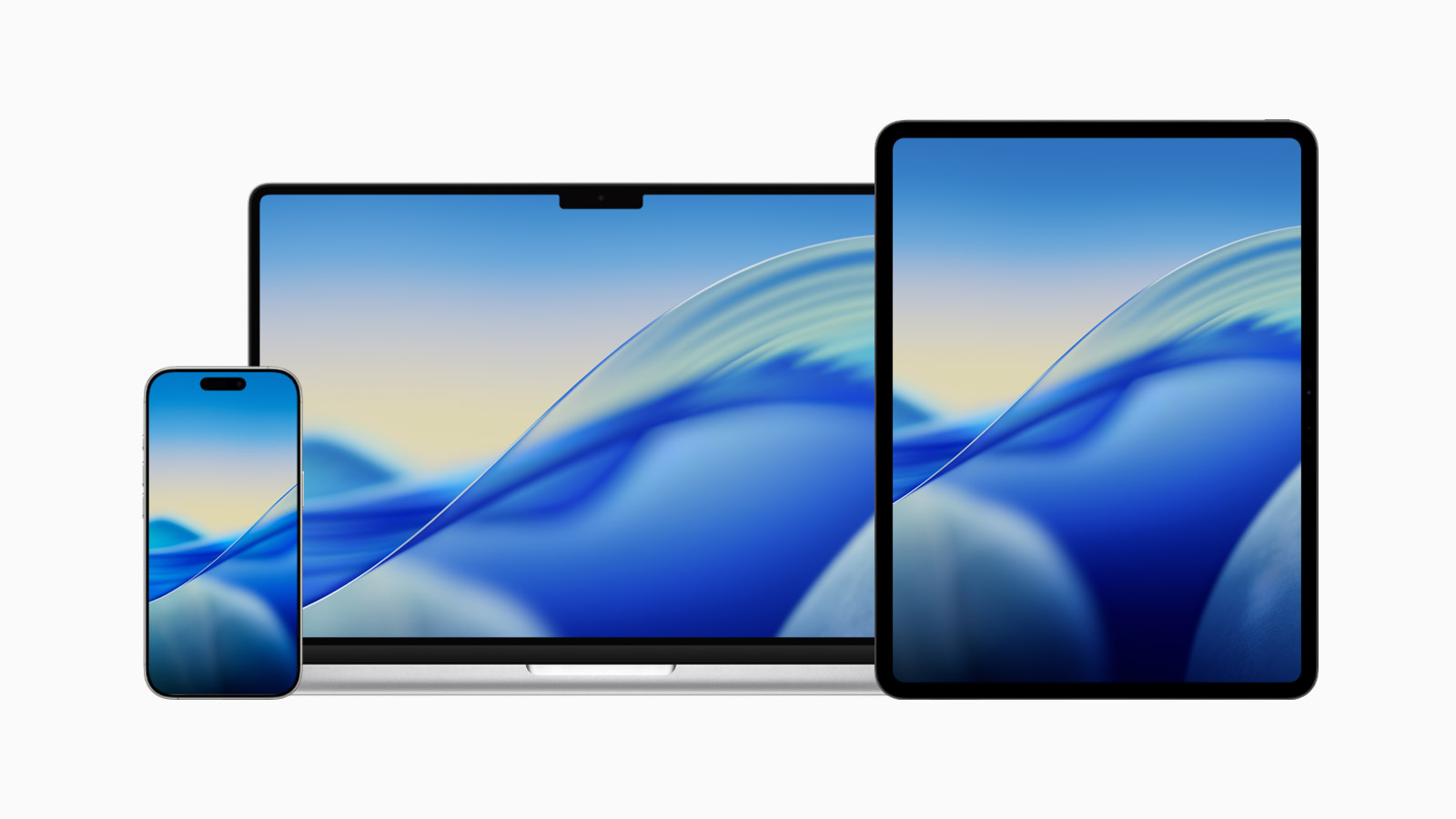
Tahoe
iPhone (Light)
PNG · 1320×2868 · 4.1 MB
iPhone (Dark)
PNG · 1320×2868 · 3.9 MB
iPad (Light)
JPG · 6016×6016 · 8.2 MB
iPad (Dark)
JPG · 6016×6016 · 7.7 MB
Mac (Light)
JPG · 6016×6016 · 8.2 MB
Mac (Dark)
JPG · 6016×6016 · 7.7 MB
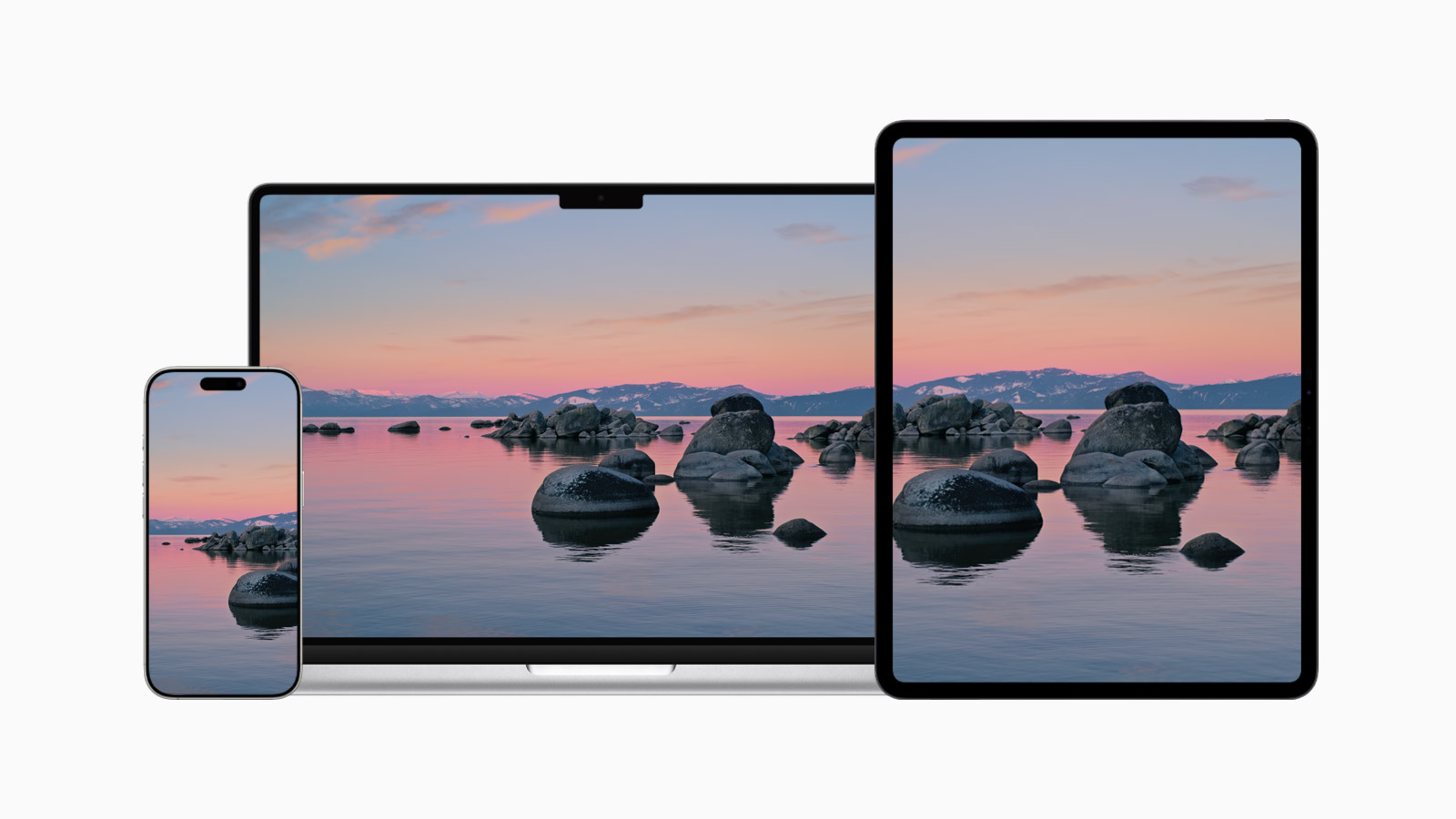
How to set wallpaper
Set your iPhone wallpaper
- In the Photos app, tap the image you downloaded.
- Tap Share button.
- Scroll down and tap Use as Wallpaper.
- Adjust the wallpaper to your liking, then tap Add.
- Tap Set as Wallpaper Pair to apply it to both your Home Screen and Lock Screen. Tap Customize Home Screen if you want to create a separate Home Screen wallpaper that you can edit.
Set your iPad wallpaper
- In the Photos app, tap the image you downloaded.
- Tap Share button.
- Tap Use as Wallpaper.
- Adjust the wallpaper to your liking, then tap Add.
- Tap Set as Wallpaper Pair to apply it to both your Home Screen and Lock Screen. Tap Customize Home Screen if you want to create a separate Home Screen wallpaper that you can edit.
Set your Mac wallpaper
- In Finder, open the folder where you saved the image.
- Right-click, or hold Control and click the image you want to set as your wallpaper.
- Click Set Desktop Picture. If you don’t see this option, move your cursor to Services > Set Desktop Picture.